
Scheduling
Schedule posts for later, understand how timezones work, move or cancel a scheduled post, and know the limits on scheduling.
A scheduled post waits in Linkpost until its time, then goes out by itself. You do not need to keep Linkpost open.
Schedule a post
- Write the post in the composer.
- At the bottom of the page, choose Schedule.
- Pick the date and the time.
- Check the timezone next to the time. Change it if the post should go out at that time somewhere else.
- Tick the confirmation box and press the schedule button, for example Schedule for 3 accounts or Schedule post.

Linkpost confirms the schedule. The one-account form shows the date, the time and the timezone, for example Scheduled for Tue 17 Nov 2026, 09:30 (Europe/Madrid).
If you choose Schedule and leave the date empty, Linkpost does not publish: it asks you to Choose a date and time.
You can also start a scheduled post from a date. Press + on a day of the calendar, or Add under a day of This week on the overview. The composer opens with that day already chosen.
What you can schedule
| Rule | Limit | Message when you break it |
|---|---|---|
| Earliest time | At least 1 minute from now | Pick a time at least a minute from now. |
| Latest time | Up to 90 days ahead | You can schedule up to 90 days ahead. |
| Posts waiting | Up to 100 scheduled posts at a time | You already have 100 scheduled posts. Cancel one or wait until some go out. |
| Files waiting | Up to 5 GB (5,120 MB) of files across your scheduled posts | Scheduled media is limited to 5120 MB per user. Cancel a scheduled post or wait until some go out. |
These limits exist because scheduled files wait on Linkpost's private storage until their date. A post that goes out frees its place.
A post to several accounts counts as one scheduled post per account.
Timezones
Every scheduled post keeps its own timezone. Linkpost publishes it at that time in that timezone.
- The timezone field starts on the timezone saved in your settings. If you have not saved one yet, it starts on your browser's timezone, and your first scheduled post saves it.
- You can pick another timezone for one post, for example to publish at 09:00 in New York while you are in Madrid.
- Changing your timezone in Settings does not move posts you already scheduled. They keep their time.
- Linkpost handles daylight saving time. A post scheduled for 09:00 in Europe/Madrid goes out at 09:00 local time, in summer and in winter.
The calendar and the overview show every post in your saved timezone. A post scheduled in another timezone appears at the matching local time. Its own page shows it in the timezone it was scheduled in.
When a scheduled post goes out
Linkpost checks for due posts every minute. A post goes out within about a minute of its time, and then follows the same steps as a post published right away: Queued, Uploading, Processing and Published.
Some details depend on the network:
- TikTok checks your settings again just before sending. If the visibility you chose is no longer available, or you turned off an interaction the post allows, the post fails and nothing is sent. See TikTok.
- TikTok also allows only a few requests per account each minute. Several posts due at the same time for one TikTok account go out 30 seconds apart.
- An account that needs reconnecting cannot publish. Its scheduled posts fail when their time comes. The overview warns you before that happens. Reconnect the account in time. See Account states.
If a scheduled post with files has still not gone out 24 hours after its time, for example because a network was down all day, Linkpost marks it failed with The file was not delivered in time and was deleted.
Move a scheduled post
You can move a post until it goes out.
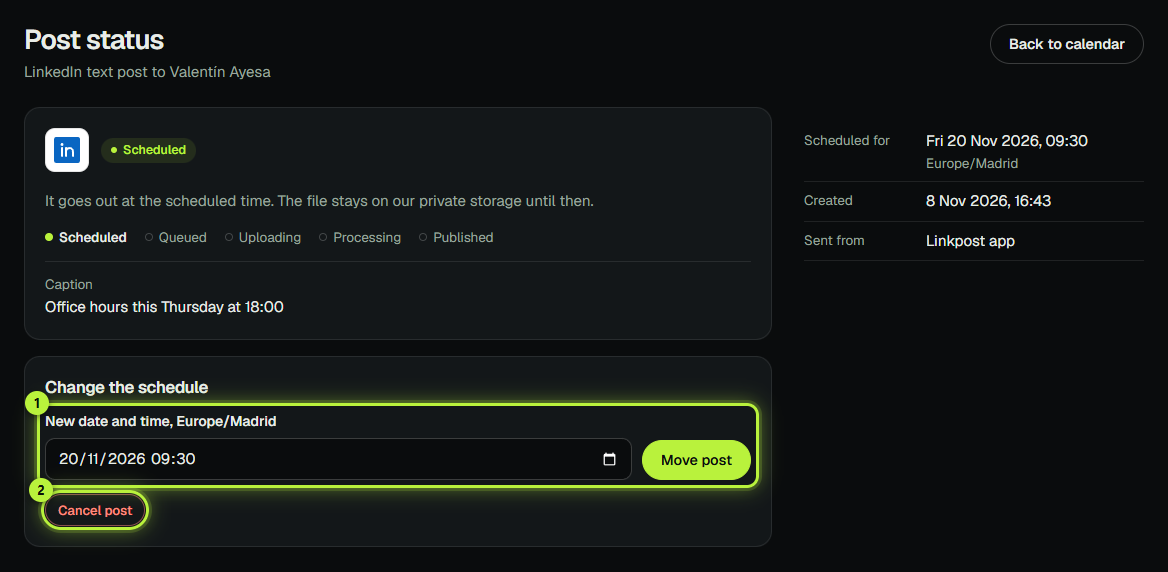
On the post's page:
- Open the post, from the calendar or from the overview.
- Under Change the schedule, pick a new date and time. The time is in the timezone the post was scheduled in.
- Press Move post.
On the calendar: in the month or week view, drag the post to another day. It keeps its time of day. You cannot drop a post on a past day. See The calendar.
The new time must follow the same rules as a new post: at least a minute from now and up to 90 days ahead. Once a post has gone out, it cannot be moved: This post already went out, so it can no longer be moved.
Change what a scheduled post says
You cannot edit the text or the files of a scheduled post. To change them, cancel the post and schedule a new one.
Cancel a scheduled post
- Open the post, or find it in the Queue next to the calendar.
- On the post's page, press Cancel post. In the queue, press × next to the post.
- Confirm with Cancel post. Choose Keep it to go back.
Linkpost cancels the post and deletes its files at once: Post canceled and its file deleted. This cannot be undone. A canceled post stays on the calendar with the status Canceled, and it does not count against your monthly allowance.
Once a post has gone out, it cannot be canceled: This post already went out, so it can no longer be canceled. To remove a published post, delete it on the network.