
The overview
What the overview shows, how to act on failed posts and accounts that need reconnecting, and how to add, move and remove widgets.
The overview is the first page after you sign in. In the sidebar, open Overview. It answers three questions at a glance: what is coming, what went out, and what needs your attention.
What the overview shows
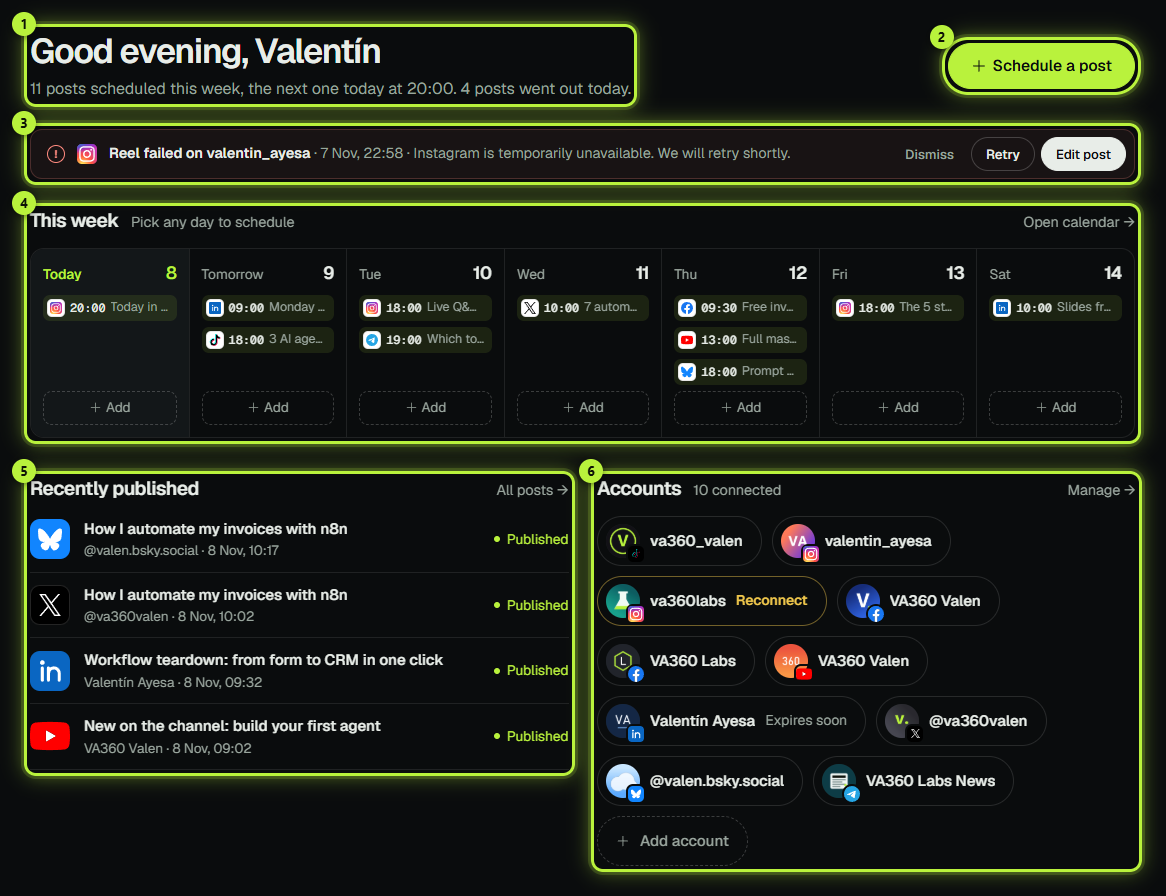
From top to bottom:
- A greeting and a summary: how many posts are scheduled this week, when the next one goes out, and how many went out today or yesterday.
- Schedule a post: opens the composer.
- Warnings about accounts that need reconnecting before their scheduled posts can go out, each with a Reconnect button.
- Failed posts from the last 7 days, with Dismiss, Retry and Edit post.
- This week, Recently published and Accounts: three sections that are always there.
- Your widgets, which you add and arrange yourself.
- Finish setting up, until you have published or scheduled a post, turned on two-factor authentication and created an API key.
All days and times are in your saved timezone.
Act on failed posts
Each failed post shows its format, its account, when it failed and why, for example Reel failed on account. Up to 3 appear at a time.
- Retry sends the post again with the files Linkpost kept. It appears only while that is possible.
- Edit post opens the composer with the post filled in, so you can fix it and send it again.
- Dismiss hides it from the overview. It stays on the calendar.

See Failed posts for when to use each one.
This week
This week shows today and the next six days, with up to 3 scheduled posts per day and a link such as +2 more when there are more. Each post shows its time and text. Press it to open it.
- Press Add under a day to schedule a post on that day. For today, the post starts at the next full hour. For other days, it starts at 09:00.
- Press a day's number, or Open calendar, to open the week on the calendar.
Recently published
Recently published lists the last 4 posts that finished: published, sent to your TikTok inbox, or failed. Each shows its account, when it finished and its status. All posts opens the full list on the calendar.
Accounts
Accounts shows each connected account as a button. Press it to write a post for that account: the multi-account composer opens with that account ticked, or the one-account form if you do not have the composer yet. An account that needs reconnecting shows Reconnect, and pressing it starts the reconnection. An account whose access ends soon shows Expires soon. Add account opens the list of networks, and Manage opens the Accounts page.
Add widgets
Widgets add numbers and planning aids to the overview.
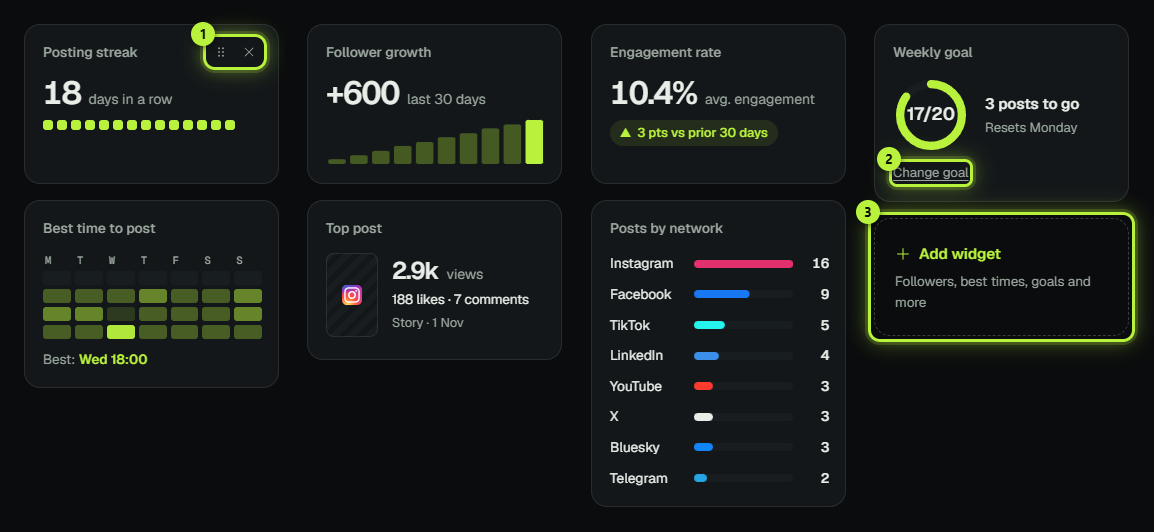
- Press Add widget at the end of the overview.
- In Add widgets, filter by All, Performance, Planning, Content or Community, and tick one or more widgets. Each card shows an example of what the widget looks like.
- Press Add widget.
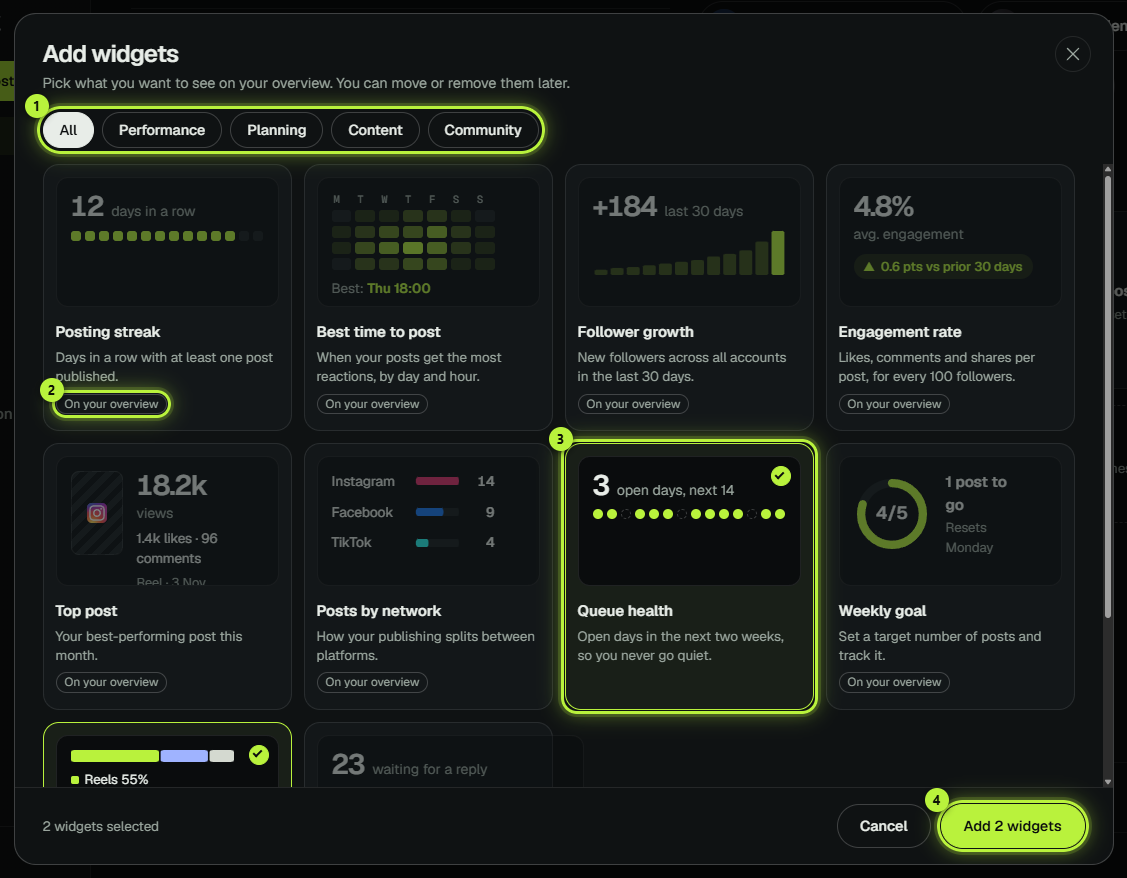
Each widget can be on the overview once. Widgets already on it show On your overview and cannot be ticked again.
| Widget | Group | What it shows |
|---|---|---|
| Posting streak | Planning | Days in a row with at least one post published, and the last 14 days. |
| Best time to post | Planning | When your posts get the most reactions, by day and by 6-hour block, over the last 90 days. |
| Follower growth | Performance | New followers across your accounts in the last 30 days. |
| Engagement rate | Performance | Likes, comments, shares and saves per post, for every 100 followers, in the last 30 days, compared with the 30 days before. |
| Top post | Performance | Your post with the most interactions this month. Press it to open it on the network. |
| Posts by network | Content | How many posts went out on each network in the last 30 days. |
| Queue health | Planning | How many of the next 14 days have nothing scheduled. |
| Weekly goal | Planning | Posts published this week against a target you set. |
| Content mix | Content | Which formats you published in the last 30 days, as a share of your posts. |
| Unanswered comments | Community | Not available yet. It arrives once Meta approves comment access. |
"Published" counts the posts that went out through Linkpost, and the posts Linkpost read from Instagram and Facebook that you published there directly.
Set your weekly goal
On the Weekly goal widget, press Change goal, enter a number of posts a week between 1 and 50, and press Save. The default is 5. The count starts again every Monday.
Move and remove widgets
- Move a widget: drag it anywhere on the overview, including next to the built-in sections. You can also use the handle on its top right: focus it and use the arrow keys. Left and right change the column. Up and down move it past the block before or after it.
- Remove a widget: press × on its top right. You can add it again later.
Linkpost saves the layout on your account, so it is the same on every device.
The three built-in sections, This week, Recently published and Accounts, cannot be removed.
When a widget has no numbers
A widget never shows a number Linkpost did not measure. Instead, it shows one sentence in place of the numbers, which says what is missing:
- When Linkpost needs more readings, for example Growth shows after Linkpost reads your follower counts on two different days.
- When there is nothing to count yet, for example Nothing published in the last 30 days.
- When the network does not give Linkpost this number yet, for example Follower counts come from Instagram and Facebook for now.
Linkpost reads follower counts once a day. See Analytics for where the numbers come from and what each network provides.