
Failed posts
Find out why a post failed, send it again with Retry or Edit post, dismiss or remove it, and know how long Linkpost keeps its files for a retry.
A post fails when the network refuses it or Linkpost cannot deliver it. Nothing is published when a post fails. Linkpost always tells you why, and in most cases you can send it again in one or two clicks.
How you find out
- On the overview. Failed posts from the last 7 days appear at the top, for example Reel failed on account, with the time and the reason. Up to 3 are shown; a link such as 2 more posts failed this week opens the rest.
- By email. Linkpost emails you, with the subject Your network post failed and the reason under What happened. Press See what happened to open the post. Linkpost waits two minutes before it sends the email, and sends at most one email per account each hour. When several posts to one account fail together, one email counts them all. You can turn these emails off: see Email notifications.
- On the post's page. The status shows Failed and the reason under it.
- On the calendar. In All posts, choose Failed to list every failed post.

You do not get an email when you caused the failure yourself in Linkpost, for example by disconnecting the account.
Why posts fail
The reason on the post tells you what happened. Most failures fall into one of these groups:
| Group | Examples | What to do |
|---|---|---|
| The network refused the content | A photo with the wrong shape for Instagram, a video the network cannot read, a text too long for the network. | Fix the file or the text, then use Edit post. |
| The account lost access | Meta access expired or was revoked. Connect the account again. | Reconnect the account, then use Retry. |
| A network limit | This Instagram account reached its daily publishing limit. Try again tomorrow. | Wait, then use Retry. |
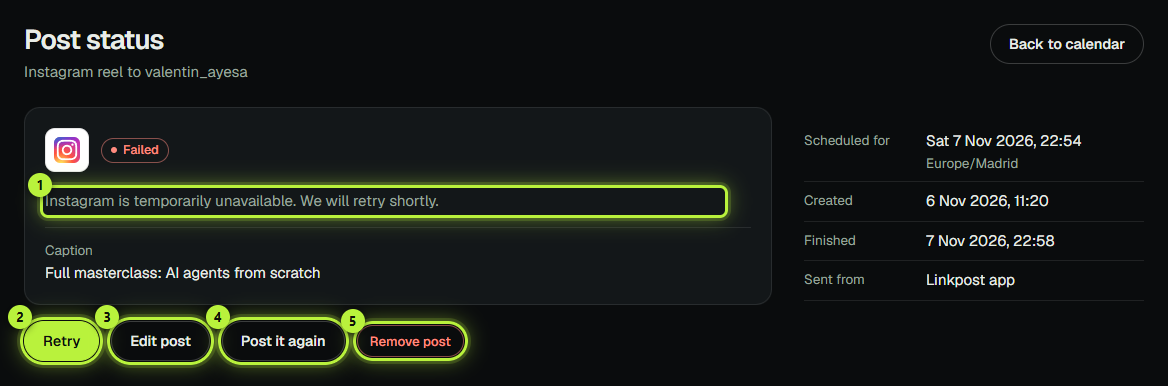
| The network was not available | Network is temporarily unavailable. We will retry shortly. | Use Retry later. |
| The network took too long | Network is taking too long to process the video. | Check the network first: the post may have gone out after all. |
| TikTok settings changed | The visibility chosen for this post is no longer available for this TikTok account. Nothing was sent. | Use Edit post and choose again. |
| The account was disconnected | The account was disconnected before the post was sent. | Reconnect the account and use Edit post. |
| The file was deleted | The file was not delivered in time and was deleted. | Use Edit post and add the file again. |
| An unexpected error | Unexpected error while sending the post. Please try again. | Use Retry. |
Each network page lists the messages that network returns, with what they mean: TikTok, Instagram, Facebook, YouTube, LinkedIn, X, Bluesky and Telegram.
Linkpost retries short problems by itself
When a network does not answer, or asks Linkpost to slow down, Linkpost does not give up at once. It tries again up to three more times over the next few minutes. The post fails only when the last attempt fails too. So a message that says We will retry shortly means those automatic retries already ran.
Retry a failed post
Retry sends the same post again, with the files Linkpost kept for it. You find it on the post's page, and on the overview next to the failed post. The overview lists the failed posts of the last 7 days that you have not dismissed, up to 3 at a time. Any other failed post, older or dismissed, has Retry and Edit post on its own page: find it on the calendar under Failed.
- Open the post's page, or the overview.
- On the failed post, press Retry.
- Linkpost opens the post's page with Sending it again. and the post goes back to Queued.
From code, use Retry a failed post in the API, with the same rules.
Retry appears only when the post can still be sent:
- Its files are still kept. Linkpost keeps them for 24 hours. See How long files are kept.
- Its account is still connected and does not need reconnecting. Reconnect it first if it does.
A text post or a poll has no files, so you can retry it at any time while its account works.
Use Retry when the problem was outside the post: a network outage, a lost connection you have since fixed, or a daily limit that has reset. If the network refused the content itself, Retry fails again for the same reason. Use Edit post instead.
Some posts continue where they stopped. On X and Bluesky, a thread that failed halfway continues from the post that failed, without publishing the first posts twice.
If you see This post can no longer be retried. Use Edit post to send it again with the video., the files are gone. Use Edit post.
Edit a failed post and send it again
Edit post opens the composer filled in with the failed post, so you can fix it and send it as a new post. You find it on the post's page, and on the overview next to the failed post.
- In the multi-account composer, Linkpost fills in the account, the text, the poll, the thread and the network settings. You see Copied from the failed post. Add the files again and send it., or Copied from the failed post. Check it and send it again. for a post without files.
- In the one-account form, Linkpost fills in the caption and the settings. You see Caption copied from the failed post. Add the video and send it again.
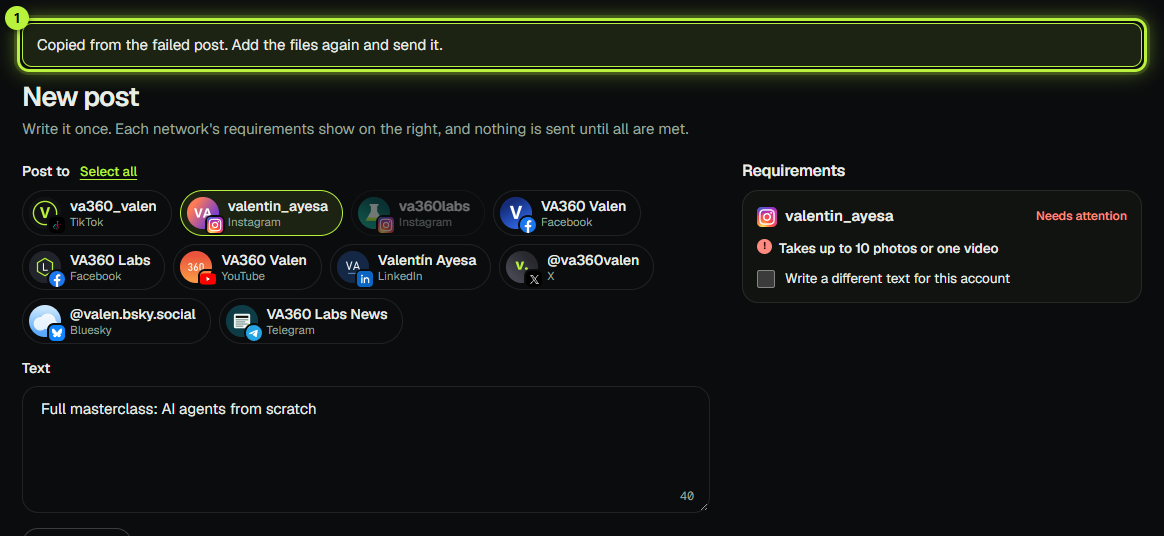
Files are never copied: add them again. For TikTok, choose Who can view this video again: TikTok requires you to choose it each time.
The failed post stays in your history. You can remove it afterwards.
If the post's account was disconnected, Linkpost says The account of that post is no longer connected. Reconnect the account first.
On the post's page, Post it again opens an empty form for the same account: the multi-account composer with that account ticked, or the one-account form if you do not have the composer yet.
Dismiss or remove a failed post
- Dismiss, on the overview, hides the failed post from the overview. It stays on the calendar and on its own page.
- Remove post, on the post's page, deletes the failed post from your history, with its files. Confirm with Remove post. You see Failed post removed. This cannot be undone.
Only failed posts can be removed. Posts that went out stay in your history as a record. To delete a published post, do it on the network.
How long files are kept
Linkpost deletes your files as soon as they are no longer needed:
| Situation | When the files are deleted |
|---|---|
| The post is published, or arrives in your TikTok inbox | Right away. |
| You cancel a scheduled post | Right away. |
| The post fails | 24 hours after its scheduled time, or after you created it if you published it right away. Until then, Retry can use them. |
| You remove a failed post | Right away. |
| You disconnect the account | Right away, for every post of that account that has not gone out. |
| You delete your Linkpost account | Right away. |
Linkpost checks for files to delete every hour, so a failed post's files go within an hour after the 24 hours end.
The 24 hours count from the post's scheduled time, not from the moment it failed. For example, a post scheduled for Monday at 10:00 that fails at 10:01 keeps its files until about 10:00 on Tuesday. A post that fails later in that window has less time left for a retry.
After the files are deleted, Retry disappears. Edit post still works: add the files again.
Failed posts and your allowance
With the new pricing there is no limit on posts. On a plan with a monthly allowance, failed and canceled posts do not count against it, and a post that you retry counts once if it goes out. See Pricing and billing.