
Pricing and billing
Connect 2 accounts for free with no limit on posts, and pay €2.99 a month, VAT included, for each extra connection (€2.47 without VAT outside Spain), counted by the day. Linkpost charges nothing for X: you post with your own X app, and X bills you directly. Add your billing details and a card, read your invoices, and see how plans work on accounts that still have them.
Linkpost charges for connected accounts, not for posts. You pay only for the accounts you connect beyond the first 2, and only for the days they are connected.
On X, you post with your own X app, and X bills each post to it directly. Linkpost charges nothing for X. See Posts on X.
What is free
- Your Linkpost account. Creating it costs nothing. While founder seats are left, anyone can sign up on the website. After that, sign-up closes, and you can ask to join on the Request access page.
- 2 connections. A connection is one connected account. Each Facebook Page, Telegram channel and network account counts as one.
- Posts. There is no limit on how many posts you create each month, and Linkpost charges nothing for them, on X included. The limits for everyone still apply, such as publishing from the web app up to 30 times a day.
Price and VAT
Each connection beyond the first 2 costs €2.99 a month with VAT included in Spain, or €2.47 without VAT outside Spain. Prices are always in euros, whatever your language.
The price you see depends on your billing country:
| Billing country | Price you see |
|---|---|
| Spain, or not known yet | €2.99 a month (VAT included) |
| Any other country | €2.47 a month, no VAT |
Linkpost knows your country once you save your billing details.
- In Spain, the price includes 21% Spanish VAT. Your tax ID (NIF, NIE or CIF) is optional.
- Outside Spain, no VAT is added, but your tax ID is required. A business in the EU gives its EU VAT number with the country code, such as DE123456789. Stripe checks the number, and the invoice applies the reverse charge.
Founders
The first 1,000 people who sign up on the website and confirm their email become founders:
- Sign up on the website.
- Open the link in the email we send you to confirm your address. That takes the next seat, and an email tells you your founder number.
- Connect your accounts, such as your TikTok, your Instagram or your LinkedIn: the first 5 are free.
Founders keep, for as long as their account exists:
| Regular | Founder | |
|---|---|---|
| Free accounts | 2 | 5 |
| Each extra account, in Spain | €2.99 a month (VAT included) | €1.49 a month (VAT included) |
| Each extra account, outside Spain | €2.47 a month, no VAT | €1.24 a month, no VAT |
Founders also get a private founders group and a vote on the roadmap. The seat is personal and cannot be transferred. If you do not confirm your email within 7 days of signing up, or the seats run out first, the account stays, with the regular deal. When the 1,000 seats are taken, the founder plan closes and does not come back. The overview and Settings, Billing show your founder number. Programs read it with Read your founder status.
How the monthly charge is counted
Linkpost bills by calendar month, in UTC.
- Each day, Linkpost counts the most accounts you had connected at the same time that day.
- That number minus 2, and never below 0, gives the day's paid connections. Each paid connection on one day is one account-day.
- On the 1st of each month, Linkpost invoices the month before: its account-days × €2.99 (VAT included, in Spain) or × €2.47 (outside Spain) ÷ the number of days in that month, rounded to the cent. Nothing is added on top.
- Stripe charges your card automatically.
For example, you connect a third account for 10 days of a 30-day month. That makes 10 account-days: 10 × €2.99 ÷ 30 = €1.00, VAT included. Outside Spain, 10 × €2.47 ÷ 30 = €0.82.
- The day you connect an account and the day you disconnect it both count.
- Which 2 accounts are the free ones does not matter. Linkpost only counts how many you have.
- A month with no paid connections has no invoice.
When billing starts
Billing starts the day you add your first card. From that day, every connection beyond 2 counts, including the ones you connected before. Nothing is billed for the days before you added a card.
If you already had more than 2 connected accounts when the new pricing reached your account, you keep all of them, and they keep publishing. To connect new ones, add your billing details and a card.
Posts on X
Linkpost charges nothing for posts on X. Since February 2026, X charges for every post made through its API, so you post to X with your own X app: you buy credits in the X Developer Console, and X charges each post to them, at its own price.
- Your posts on X need no card, billing details or monthly limit in Linkpost, and never appear on your invoices.
- An X account counts as one connection, like any other account.
To create your X app and connect X, see X.
Add your billing details
- In the sidebar, open Settings, then the Billing tab.
- Under Billing details, fill in Name or company, Country, Address, Postal code and City. They appear on your invoices.
- Fill in Tax ID:
- In Spain: your NIF, NIE or CIF. You can leave it empty.
- In another EU country: your EU VAT number with its country code, such as DE123456789.
- Anywhere else: your tax ID, in letters and numbers.
- Press Save billing details. Linkpost confirms with Billing details saved.
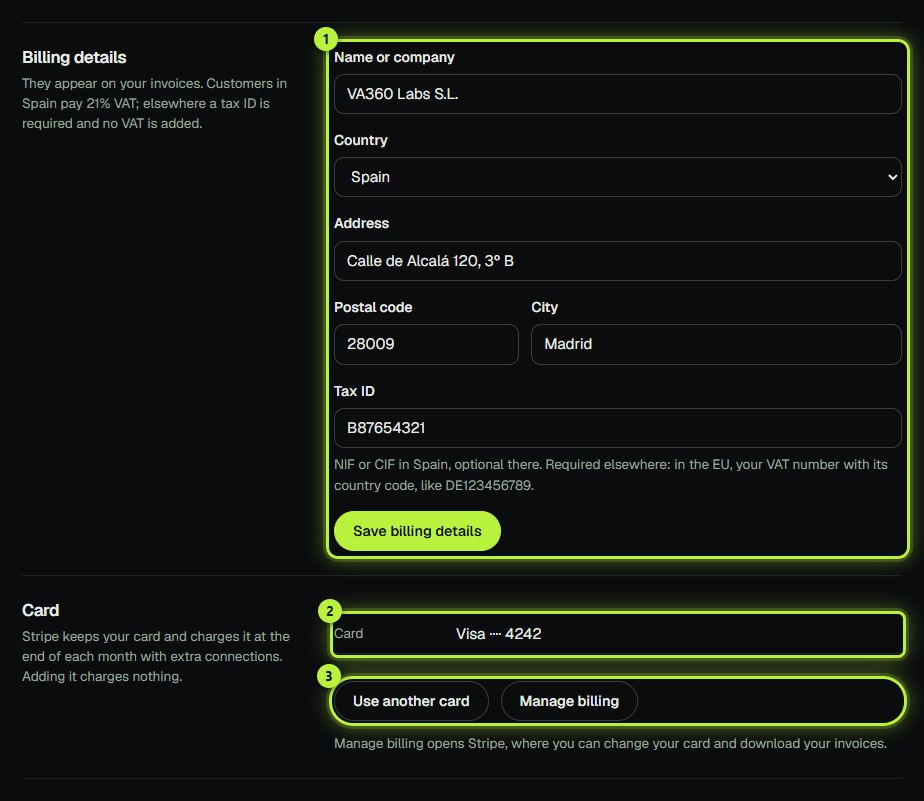
Your country sets the price you see. See Price and VAT. To change your details, edit them and press Save billing details again.
Add a card
You need a card to connect more than 2 accounts. Adding it charges nothing.
- Save your billing details first. Until then, Card shows Save your billing details first, then add a card.
- Under Card, press Add a card.
- Stripe's page opens, in your language. Enter your card there. Nothing is charged.
- Stripe sends you back to Billing, which shows Card saved. You can connect more accounts now; nothing has been charged.
Stripe keeps your card: you enter it on Stripe's page, not on Linkpost. If you close Stripe's page without finishing, no card is saved.
Once a card is saved, Card shows it, such as Visa ···· 4242, and the button becomes Use another card. Press it to save a different card the same way.
Manage billing opens Stripe's billing page, where you can change your card and download your invoices. It appears once you have saved your billing details.
What Billing shows
In the sidebar, open Settings, then the Billing tab. From top to bottom:
- An alert, only when a payment failed. See If a payment fails.
- Connected accounts:
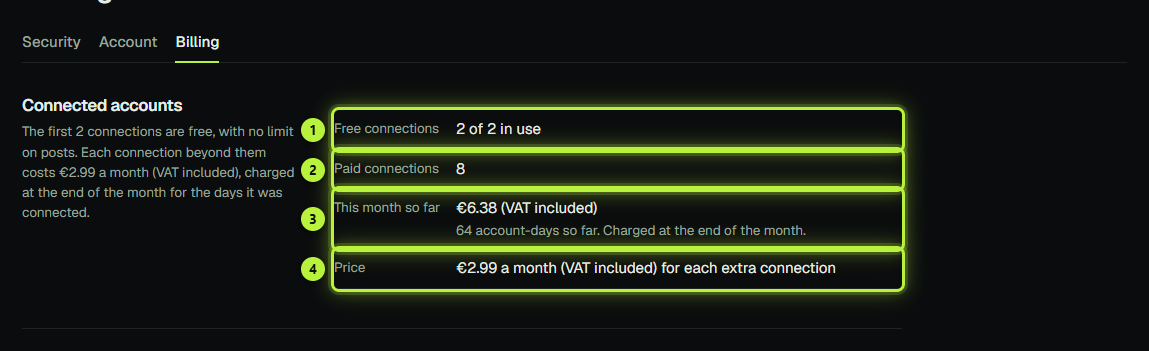
- Free connections: how many of your 2 free connections you use, such as 2 of 2 in use.
- Paid connections: how many connections you have beyond the free ones right now.
- This month so far: what the month costs up to today, such as €1.00 (VAT included), with the account-days so far, such as 10 account-days so far. Charged at the end of the month.
- Price: such as €2.99 a month (VAT included) for each extra connection.
- Billing details: the form where you add your billing details.
- Card: your card, or No card yet, with Add a card or Use another card, and Manage billing. See Add a card.
- Invoices: your invoices. See Invoices.
Invoices
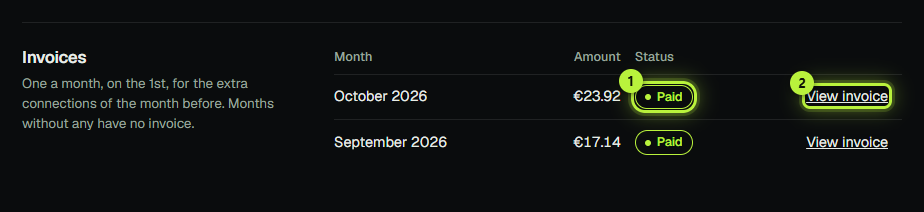
Linkpost sends one invoice a month, on the 1st, for the extra connections of the month before. Months without paid connections have no invoice. Stripe charges your card automatically.
Under Invoices, each row shows the Month, the Amount and the Status. View invoice opens the invoice on Stripe, where you can download it. You can also download all your invoices from Manage billing.
| Status | What it means |
|---|---|
| Being prepared | Linkpost is creating the invoice. |
| Due | The invoice is ready, and Stripe charges your card. |
| Paid | The invoice is paid. |
| Payment failed | Stripe could not charge your card, and tries again over the next days. See If a payment fails. |
| Needs your confirmation | Your bank asks you to confirm the payment. |
| Unpaid | Stripe stopped trying, and the invoice is still unpaid. Pay it with Pay the invoice. |
| Canceled | The invoice was canceled. There is nothing to pay. |
If a payment fails
When Stripe cannot charge your card:
- Linkpost emails you, with the subject Your Linkpost payment did not go through. When your bank asks you to confirm the payment, the subject is Confirm your Linkpost payment. These emails always arrive: you cannot turn them off in Settings.
- Stripe tries the card again over the next days.
- Until the invoice is paid, you cannot connect more paid accounts. The accounts you have keep working and keep publishing.
- Billing shows Your last payment did not go through. Until it is paid you cannot connect more accounts. The accounts you have keep working., with a Pay the invoice button, or Confirm the payment when your bank asks you to confirm it.
To fix it, press Pay the invoice or Confirm the payment, on Billing or in the email, and pay on Stripe's page. To use another card, press Use another card or Manage billing.
As soon as the invoice is paid, by you or by one of Stripe's tries, you can connect accounts again.
Connect and disconnect accounts
- Up to 2 accounts, you connect as usual, without billing details or a card.
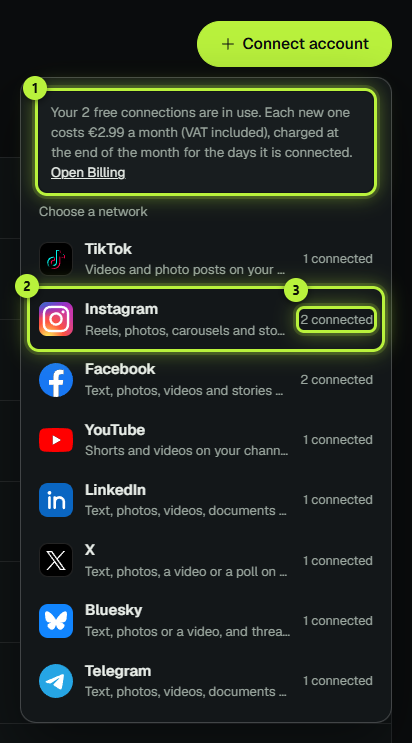
- Once your 2 free connections are in use, the Connect account menu shows a note with the price, such as Your 2 free connections are in use. Each new one costs €2.99 a month (VAT included), charged at the end of the month for the days it is connected., and an Open Billing link.
- To connect a third account and more, you need billing details and a card. Nothing is charged when you connect. Without them, or while an invoice is unpaid, Linkpost refuses the connection and shows the reason with an Open Billing button. In the Bluesky form you see an Open Billing link, and on Telegram the Linkpost bot replies with the reason and a link to Billing. See Billing messages.
- To connect X, you also need your own X app, which X bills for your posts. An X account counts as one connection, like any other. See Posts on X.
- Disconnecting an account stops its charge from the next day. The day you disconnect it still counts.
- Reconnecting an account you already have does not count as a new connection.
- With Facebook, you can connect several Pages at once. Each Page counts as one connection. If there is no room for all of them, Linkpost connects the Pages it can and shows the reason.
To connect and disconnect accounts, see Connect your accounts.
Billing messages
| Message | What it means | What to do |
|---|---|---|
| The first 2 connections are free. To connect more, add your billing details and a card in Settings > Billing: each extra connection costs price, charged at the end of the month for the days it was connected. | You tried to connect a third account, and you have no card yet. | Press Open Billing, add your billing details and a card, then connect the account again. |
| Your last payment for extra connections did not go through. Pay it or change your card in Settings > Billing to connect more accounts. The accounts you have keep working. | An invoice is unpaid, so new paid connections wait. | Press Open Billing and pay the invoice, or use another card. See If a payment fails. |
| Enter the name or company the invoices go to. | Name or company is empty. | Fill it in. |
| Choose your country. | Country is empty. | Choose your country. |
| Enter your address., Enter your postal code. or Enter your city. | That field is empty. | Fill it in. |
| Enter your tax ID. Outside Spain it is required, and no VAT is added to your invoices. | Your country is not Spain, and Tax ID is empty. | Enter your tax ID. |
| Enter a valid NIF, NIE or CIF, like B12345678. | Your country is Spain, and the tax ID is not a valid NIF, NIE or CIF. | Correct it, or leave it empty. |
| Enter your EU VAT number with its country code, like DE123456789. | Your country is in the EU, and the number is not an EU VAT number. | Enter it with its country code in front. |
| Enter your tax ID with letters and numbers only. | The tax ID has other characters, or is too short. | Correct it. |
| Stripe did not accept that tax ID. Check it and try again. | Stripe checked the tax ID and refused it. | Check it and press Save billing details again. |
| Billing details saved. | Your details are saved, on Linkpost and on Stripe. | Add a card, if you have not yet. |
| Card saved. You can connect more accounts now; nothing has been charged. | Your card is saved. | Connect your accounts. |
| The card was not saved. Try again. | Stripe's page was not finished, or Linkpost could not confirm the card. | Press Add a card again. |
| Add your billing details first. | You tried to add a card before you saved your billing details. | Save your billing details, then add the card. |
| There is nothing to manage yet: add your billing details first. | You pressed Manage billing before you saved your billing details. | Save your billing details first. |
| Payments are not available right now. Try again in a few minutes. | Linkpost could not reach Stripe. | Try again in a few minutes. |
| Stripe could not complete that. Nothing was charged. Try again, or contact support if it keeps happening. | Stripe refused the request. | Try again. If it happens again, contact Linkpost support. |
| Your billing details could not be found. Contact support so we can fix it. | Stripe has no record that matches your account. | Contact Linkpost support. |
Limits for everyone
These limits apply to every account, with or without a plan. They protect the networks' limits and Linkpost's storage.
| What | Limit | Where it is explained |
|---|---|---|
| Publishing from the web app | 3 times a minute and 30 times a day. A post to several accounts counts once here. Retry counts too. | When you reach it, you see Too many requests. Wait a minute and try again. |
| Scheduled posts waiting | 100 at a time | Scheduling |
| Files waiting for scheduled posts | 5 GB in total | Scheduling |
| How far ahead you can schedule | 90 days | Scheduling |
| Accounts in one post | 25 | The composer |
| Files in one post | 35, of up to 512 MB each | The composer |
| Copilot requests | 6 a minute and 60 a day | Analytics |
| REST API and MCP server | Separate limits per key and per account | Developer guide |
Each network also has its own limits on files, text and video length. See Formats and limits.
Accounts still on plans
If Billing shows Your plan, the new pricing has not reached your account yet, and plans set your limits.
How plans work
- No plan. If your account never had a plan, Your plan says You are in the beta, with no limits. You have no limit on connected accounts or monthly posts.
- A plan. When you choose a plan, or the Linkpost team gives you a trial or a courtesy plan, its limits apply. A plan can limit connected accounts, monthly posts, both or neither. Your plan shows what you used next to each limit, such as
12 / 100, or Unlimited, and the date the plan Renews or Ends. - A plan that ended. When a trial, a plan with an end date or a plan you canceled ends, the limits of the free plan apply. Your connected accounts, scheduled posts and history all stay.
Connected accounts and monthly posts
Connected accounts. Each Facebook Page, Telegram channel and network account counts as one. At the limit, connecting another shows Your plan allows N connected accounts. Disconnect one or change your plan. Reconnecting an account you already have never counts. If your limit drops below the accounts you have, they stay connected and keep publishing, but you cannot connect new ones until you are under the limit.
Monthly posts. Every post you create in a calendar month counts, whether you publish it now or schedule it, once per account, from the web app, the REST API and the MCP server. A scheduled post counts in the month you created it. Failed and canceled posts do not count. The count starts again on the 1st of each month, at 00:00 UTC. When you have used them all, creating a post shows Your plan allows N posts a month and you have used them all. In the multi-account composer, Linkpost checks that every account fits before it creates anything: Each account counts as one post. Posts you already scheduled still go out as planned.
Choose or change a plan
Under Choose a plan, press the price you want. Stripe's checkout page opens in your language: enter your card there, and a promotion code or a tax ID if you have one. Taxes are shown before you pay. Back on Billing, you see Thank you. Your payment went through; your plan updates here in a few seconds. If you close the checkout page without paying, nothing is charged.
When you already pay through Stripe, the section is called Change plan, and the button of your plan shows Current. Press another price: the change applies at once, and Linkpost confirms with Your plan is now plan. The difference is prorated on your next invoice.
If Choose a plan does not appear, plans cannot be bought online yet. Contact Linkpost support to get or change a plan.
Manage billing and cancel
Manage billing opens Stripe's billing page, where you can change your card, download your invoices or cancel your plan. When you cancel, you keep your plan until the date under Ends. Then the limits of the free plan apply.
If a plan payment fails
Stripe tries the card again later, and you keep your plan meanwhile. Billing shows Payment with The last payment failed. Update your card to keep your plan. Press Manage billing and update your card. If Stripe still cannot charge it in the end, the plan ends and the limits of the free plan apply.
Plan emails
Unless you turn off Monthly limit or Your plan in Settings, Linkpost emails you:
- When you have used 80% of your monthly posts, with the subject N of M posts used this month, and when you have used them all, with the subject You have used all N posts this month.
- 3 days before a trial or a plan with an end date ends, and when it ends.
Plan messages
| Message | What it means | What to do |
|---|---|---|
| That plan cannot be bought online yet. | The plan has no price you can pay online. | Choose another plan, or contact Linkpost support. |
| There is nothing to manage yet: choose a plan first. | You pressed Manage billing before you ever opened the checkout. | Choose a plan first. |
The other messages about Stripe are the same as in Billing messages.