
Connect your accounts
Use the Accounts page to connect, reconnect and disconnect your social media accounts, understand each account state and see what access Linkpost gets.
Linkpost publishes to the accounts you connect on the Accounts page. You connect each account once, through the network's own sign-in. Linkpost never asks for your network password.
The Accounts page
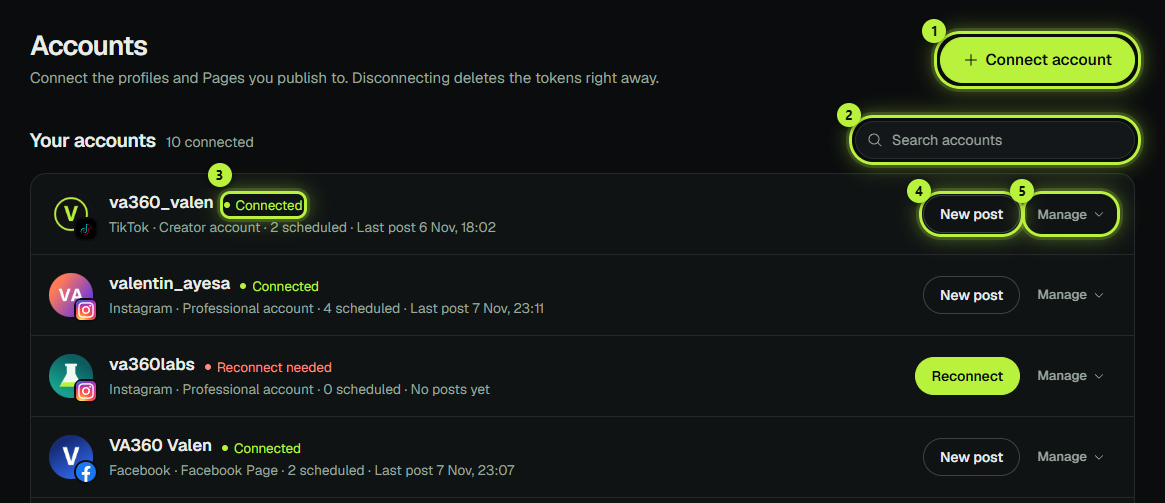
In the sidebar, open Accounts. The page lists Your accounts, with how many are connected and a Search accounts box to filter them by name, network or type.
Each account shows:
- Its picture (or its initials when the network has none), its name and its state: Connected, Access expires followed by a date, or Reconnect needed. See Account states.
- The network and the type of account: Creator account (TikTok), Professional account (Instagram), Facebook Page, YouTube channel, Personal profile (LinkedIn), Channel (Telegram) or Profile (X and Bluesky).
- How many posts are scheduled for it, and the date of its last published post.
On the right of each account:
- New post opens a post for this account: the multi-account composer with this account ticked, or the one-account form if you do not have the composer yet. When the account needs reconnecting, this button is replaced by Reconnect.
- Manage opens a menu with See network posts (the account's network in the calendar list), Reconnect and Disconnect.
Connect an account
- In the sidebar, open Accounts.
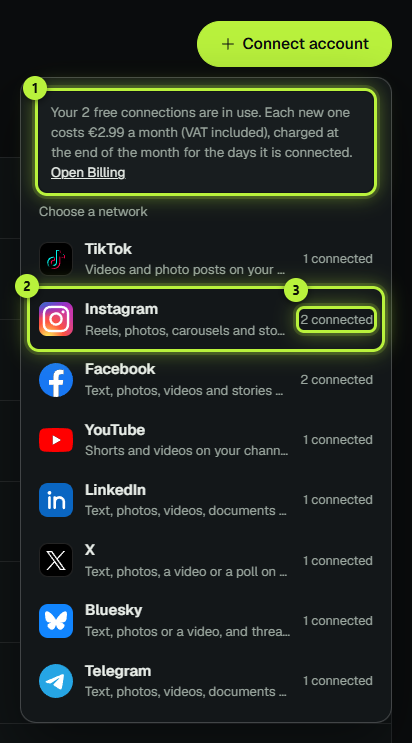
- Press Connect account. If you have no accounts yet, the networks are listed under Connect your first account.
- Under Choose a network, press the network.
- The network's sign-in opens in a small window. Linkpost shows Finish connecting network in the window that just opened, with Show window to bring it to the front and Cancel to stop.
- Sign in on the network and accept the permissions. Keep every permission on: Linkpost asks only for what it needs to publish.
- The window closes by itself and you are back in Linkpost. A message confirms the connection, for example Instagram account connected.
On a phone, the sign-in opens in the same tab instead of a window.
Bluesky, Telegram and X work differently: Bluesky asks for an app password, Telegram asks you to add the Linkpost bot to your channel, and X asks first for the keys of your own X app. See Bluesky, Telegram and X.
Some networks have requirements before you connect. Read the network's page first: TikTok, Instagram, Facebook, YouTube, LinkedIn, X, Bluesky and Telegram.
Connect several accounts of the same network
You can connect several accounts of one network. Press Connect account again and choose the same network. The list shows how many accounts of each network you already have, for example 2 connected.
To connect a different account of the same network, make sure you are signed in to that account on the network first, or switch account in the network's sign-in window.
How many accounts you can connect
Each Facebook Page, Telegram channel and network account counts as one connected account.
- With the new pricing, your first 2 connections are free. To connect a third account and more, first add your billing details and a card in Settings, Billing. Nothing is charged when you connect: each extra connection is charged at the end of the month for the days it was connected. Once your 2 free connections are in use, the Connect account menu shows the price and an Open Billing link.
- X needs your own X app. You create it once in the X Developer Console, and X bills your posts to it. Linkpost charges nothing for X, and an X account counts as one connection, like any other. See What X costs.
- On accounts that still have plans, your plan sets how many accounts you can connect.
See Pricing and billing.
Networks under "Not available on this server yet"
Linkpost can only connect a network once that network's app is set up on the server. Networks that are not set up yet appear under Not available on this server yet and cannot be chosen. They become available without any action on your side.
One account, one Linkpost user
A social account can be connected to only one Linkpost user. If someone else already connected it, Linkpost refuses with a message such as This Instagram account is connected to another Linkpost user. Ask that person to disconnect it first.
Account states
| State | What it means | What to do |
|---|---|---|
| Connected | Linkpost can publish to the account. | Nothing. |
| Access expires in some days | The network gave Linkpost access for a limited time, and it ends in less than 14 days. This happens with TikTok and LinkedIn. | Reconnect the account before that date, so scheduled posts can still go out. |
| Reconnect needed | The network no longer accepts Linkpost's access. The access expired, or it was removed on the network's side. | Press Reconnect and sign in again. |
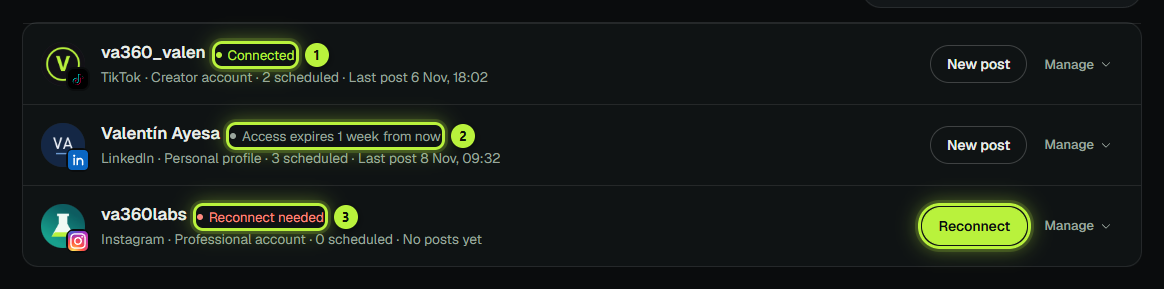
When an account needs reconnecting:
- You cannot choose it for new posts. In the composer it appears greyed out.
- Its scheduled posts fail when their time comes. The overview warns you with a message such as Account needs reconnecting before its 2 scheduled posts can go out.
- Linkpost emails you once, with the subject Reconnect your network account, unless you turned off publishing emails in Settings.
Common reasons for Reconnect needed:
- You removed Linkpost in the network's settings, or changed something there that cancelled the access.
- LinkedIn access ran out. LinkedIn gives access for 60 days and does not let Linkpost renew it.
- TikTok access reached the end of the period in which Linkpost can renew it, or TikTok refused to renew it. Linkpost renews TikTok access a few hours before it runs out, and the account shows Reconnect needed as soon as TikTok refuses.
- YouTube, X or Bluesky refused to renew the access.
- You changed your X app for another one, or removed its keys. See Change or remove your keys.
- On Telegram, the Linkpost bot was removed from the channel or lost the right to post messages.
Instagram access lasts 60 days, but Linkpost renews it automatically every day while it works. Facebook Page access does not expire.
Reconnect an account
- In the sidebar, open Accounts.
- On the account, press Reconnect. If the account is still connected, open Manage and choose Reconnect.
- Sign in on the network with the same account and accept the permissions.
Reconnecting replaces the stored access and clears the Reconnect needed state. The account keeps its posts, its scheduled posts and its analytics. Reconnecting an account you already have never counts as a new connection, and never counts against a plan's limit.
For Telegram, add the Linkpost bot to the channel again as an admin who can post messages. Linkpost notices and the bot confirms that it can post again.
Disconnect an account
- In the sidebar, open Accounts.
- On the account, open Manage and choose Disconnect.
- Confirm with Disconnect.

When you disconnect an account:
- Linkpost deletes its access tokens right away.
- Linkpost deletes its copy of the account's picture.
- Linkpost also cancels the access on the network where the network allows it: TikTok, YouTube (Google), X and Bluesky. On Telegram, the bot leaves the channel.
- Every post for that account that has not gone out yet fails, and its files are deleted. The confirmation message tells you how many scheduled posts will fail.
- The account's analytics data (follower readings and post numbers) is deleted.
- Posts that already went out stay in your history, marked as from a disconnected account.
Instagram, Facebook and LinkedIn do not let Linkpost cancel the access from its side. Linkpost still deletes its copy at once. To remove Linkpost from the network too, do it in the network's settings. See the network's page.
Remove Linkpost from the network's side
You can also remove Linkpost in the settings of TikTok, Instagram or Facebook. When the network tells Linkpost, the account is removed from Linkpost and its pending posts fail. On the other networks, the account shows Reconnect needed the next time Linkpost tries to use it.
What access Linkpost gets
Linkpost asks each network only for the permissions it needs to show which account is connected, publish to it and, where the network allows it, read its numbers.
| Network | Permissions | What they allow |
|---|---|---|
| TikTok | user.info.basic, video.upload, video.publish |
Show your name and picture, send videos to your TikTok inbox, post to your profile. |
instagram_business_basic, instagram_business_content_publish |
Read your profile and recent posts with their counts, publish to your account. | |
pages_show_list, pages_manage_posts, pages_read_engagement |
List the Pages you choose, publish to them, read their posts and counts. | |
| YouTube | youtube.upload, youtube.readonly |
Upload videos to your channel, read your channel's name. |
openid, profile, w_member_social |
Read your name and picture, post on your behalf. | |
| X | tweet.read, tweet.write, users.read, media.write, offline.access |
Read your profile, post and upload media, keep access without signing in again. |
| Bluesky | A session created from an app password | Post on your behalf. Linkpost does not keep the app password. |
| Telegram | The Linkpost bot as a channel admin who can post messages | Post in that channel. |
Linkpost stores access tokens encrypted and uses them only to do what you ask. See Privacy and data.
If connecting fails
| Message | What it means | What to do |
|---|---|---|
| The sign-in expired or was not started here. Please try again. | The sign-in took too long, or it was opened in another browser. | Start again from Accounts, in the same browser. |
| Access was not granted. | You cancelled on the network's screen. | Connect again and accept. |
| Sign in to finish | The network sent you back to a browser that is not signed in to Linkpost. | Open Linkpost in the browser where you started, or sign in and connect again. |
| The first 2 connections are free. To connect more, add your billing details and a card in Settings > Billing: each extra connection costs price, charged at the end of the month for the days it was connected. | Your 2 free connections are in use, and you have no card yet. | Press Open Billing, add your billing details and a card, then connect the account again. See Add a card. |
| Your last payment for extra connections did not go through. Pay it or change your card in Settings > Billing to connect more accounts. The accounts you have keep working. | An invoice for extra connections is unpaid. | Press Open Billing and pay the invoice, or use another card. See If a payment fails. |
| Your plan allows N connected accounts. Disconnect one or change your plan. | Your account still has plans, and you reached the number of accounts your plan includes. | See Accounts still on plans. |
| Network did not let Linkpost in. Please try again. | The network refused the sign-in. | Try again. If it keeps failing, check the network's page. |
X did not let Linkpost in. Check the Client ID and Client Secret of your X app, and that its callback URL is https://linkpost.app/connect/x/callback. |
X refused to connect the account with your X app. | See If X does not let Linkpost in. |
| Linkpost needs permission to publish to network. Connect again and keep every option on. | You turned off a permission on the network's screen. | Connect again and keep every permission on. |
With the two messages about extra connections, Linkpost shows an Open Billing button. The Bluesky form shows an Open Billing link instead, and on Telegram the Linkpost bot replies with the message and a link to Billing.