
Authentication and limits
Create and revoke API keys, send them with each request, keep them safe, and stay within the rate limits. Also what a 401, 403 or 429 answer looks like.
The API and the MCP server use personal API keys. A key acts as you: it can do through the API everything the API offers on your Linkpost account. Each request sends the key as a bearer token.
Create a key
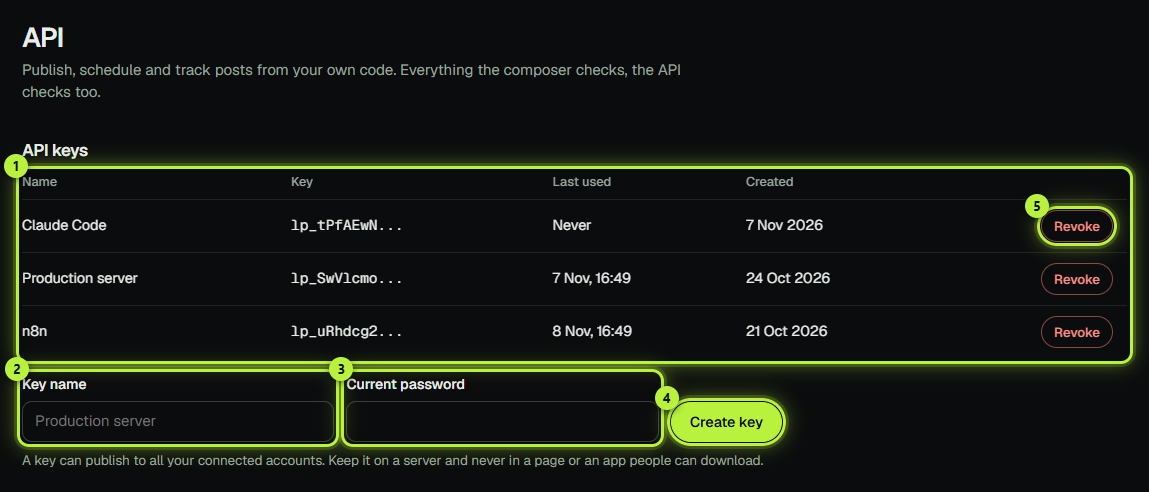
- In the sidebar, under Developers, open API.
- Under API keys, enter a Key name. Use a name that says where the key lives, such as
Production serverorn8n. The name can be up to 80 characters. - Enter your Current password. Linkpost asks for it because a key can publish to all your connected accounts.
- Press Create key.
- Copy the key shown under Copy your new key now.
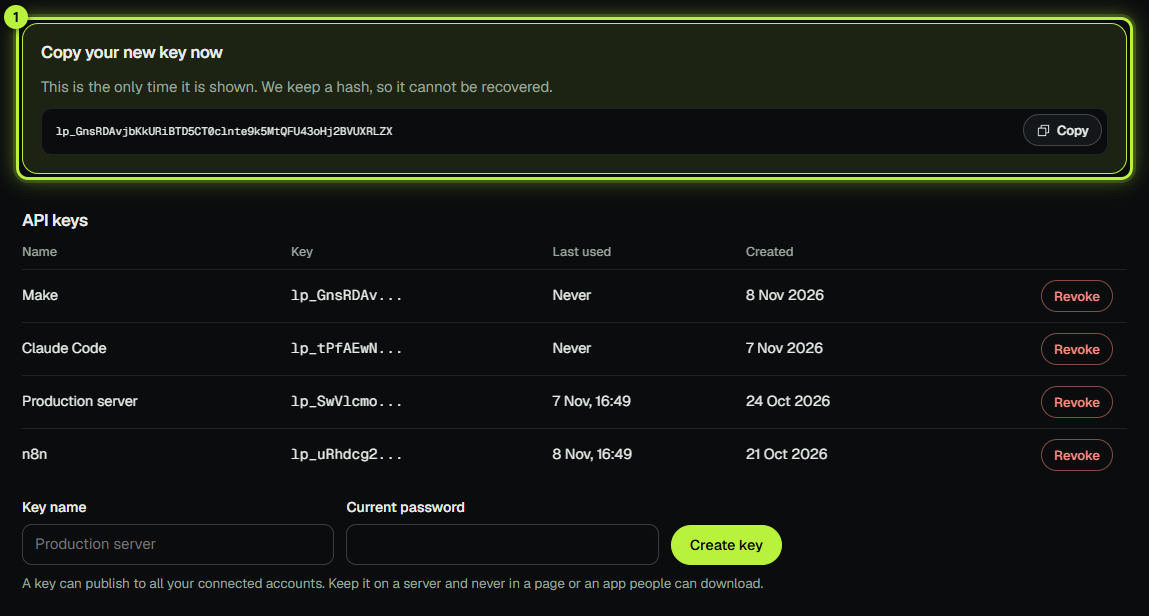
The key starts with lp_. Linkpost shows it only once and keeps only a hash of it, so nobody can show it to you again, not even Linkpost. If you lose a key, create a new one and revoke the old one.
You can have up to 10 active keys. With 10, creating another shows You can have up to 10 active keys. Revoke one first.
The table under API keys lists your active keys with their Name, the first characters of the Key (like lp_8fK2mQ7...), when the key was Last used and when it was Created. Last used shows Never until the key makes its first request. It is updated at most once a minute.
Send the key
Send the key in the Authorization header of every request, after the word Bearer and a space:
Authorization: Bearer lp_your_key
curl https://linkpost.app/api/v1/accounts \
  -H "Authorization: Bearer $LINKPOST_KEY"
const response = await fetch("https://linkpost.app/api/v1/accounts", {
  headers: { Authorization: `Bearer ${process.env.LINKPOST_KEY}` },
});

console.log(response.status, await response.json());
import os

import requests

response = requests.get(
    "https://linkpost.app/api/v1/accounts",
    headers={"Authorization": f"Bearer {os.environ['LINKPOST_KEY']}"},
    timeout=30,
)

print(response.status_code, response.json())
<?php
require 'vendor/autoload.php';

$client = new GuzzleHttp\Client([
    'base_uri' => 'https://linkpost.app/api/v1/',
    'headers' => ['Authorization' => 'Bearer '.getenv('LINKPOST_KEY')],
    'http_errors' => false,
]);

$response = $client->get('accounts');

echo $response->getStatusCode(), PHP_EOL, $response->getBody(), PHP_EOL;
The API does not use cookies or sessions. Being signed in to linkpost.app in your browser does not open the API: without the header, every endpoint answers 401.
What a key can do
A key has no scopes and does not expire. It works until you revoke it. With a key, a program can:
- List all your connected accounts and read TikTok creator info.
- Publish and schedule posts on any of your connected accounts.
- List and read all your posts, including the ones you created in the app or through the MCP server.
- Reschedule and cancel any of your scheduled posts, wherever they were created.
- Retry any of your failed posts while Linkpost keeps their files, and remove the failed ones.
- Get the link that connects or reconnects an account, disconnect an account, and save or remove the keys of your own X app.
- Read and change your timezone, language and email notifications, read your billing, and save your billing details.
- List, read, create, change and delete your analytics reports.
- Use the MCP server, with the same rights.
A key cannot accept a network's sign-in screen for you, create or revoke keys, change your password or two-step sign-in, add a card, delete your Linkpost account or sign in to the app. Those need you in the app.
Every post made with a key has "source": "api", or "mcp" when it came through the MCP server, so you can tell them apart from posts made in the app ("web").
Work on an account you manage
In agency mode you can manage other people's Linkpost accounts. See Agency mode and team. A request works on one of those accounts in two ways:
- Send the
Linkpost-Accountheader with the account's id, fromGET /api/v1/clients. Your own key then works on that account. - Make a key for that account. When you create a key, Linkpost asks which account it Works on: Your account, or one you manage. That choice shows only once you manage at least one account. A key made for an account works on it without the header, and the list of keys shows it with Works on name.
Either way, the key does only what that account lets you do, and stops working on it when they take your access away. The key stays yours: the owner of that account does not see it. See Team and clients.
Keep your keys safe
- Keep keys on a server. Never put a key in a web page, a browser extension, a mobile app or anything else people can download and open. Anyone who reads the key can publish on your accounts.
- Keep keys out of your code. Read them from an environment variable or a secret manager. Never commit a key to a repository.
- Use one key per program. With a key per integration, you can revoke one without stopping the others, and Last used tells you which one is active.
- Revoke keys you no longer use, and any key that may have leaked.
- Changing your password does not revoke keys. If you think someone else had access to your account, revoke every key as well. See Security.
Revoke a key
- In the sidebar, under Developers, open API.
- In the API keys table, press Revoke on the key's row.
- Confirm with Revoke key.
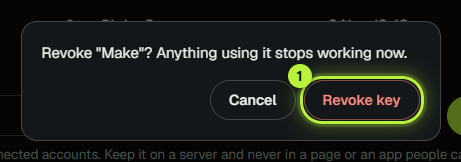
Linkpost shows Key "Name" revoked. Anything using it stops working now. The next request with that key gets 401. Posts that the key already scheduled stay scheduled. Cancel them in the app or with another key if you do not want them.
Rate limits
| Limit | Value | Counted for | What counts |
|---|---|---|---|
| Requests | 120 a minute | each key | Every REST request and every MCP request. |
| New posts (REST) | 10 a minute and 100 a day | your user, across all keys | Every POST /api/v1/posts and POST /api/v1/posts/{id}/retry request, including the ones refused with 422 or 409, and each post of a POST /api/v1/posts/batch that passes. |
| New posts (MCP) | 10 a minute and 100 a day | your user, across all keys | Every publish_post call that passes the consent and plan checks, every retry_post that can go ahead, and each post of a publish_posts that passes. |
| Changes | 10 to 30 a minute | your user | 10 for batches of posts, disconnecting an account or a WhatsApp number, the keys of your X app and billing details; 20 for changing or deleting WhatsApp templates; 30 for settings and reports. |
| Failed authentication | 20 a minute | each IP address | Requests with a missing, wrong or revoked key. |
Each window starts with the first request it counts: a minute or 24 hours from that moment. The REST API and the MCP server count new posts separately.
Responses to counted requests carry X-RateLimit-Limit and X-RateLimit-Remaining headers. Past a limit you get 429 with a Retry-After header: the number of seconds to wait.
After 20 failed attempts in a minute from one address, every request from that address gets 429 for the rest of the minute, even with a valid key. A program that keeps sending a revoked key can block other programs on the same server this way. Stop on the first 401.
Limits on what you publish
These come from your account, not from the key, and apply to the app, the API and the MCP server alike:
- Monthly posts of your plan. Only accounts on a plan with a monthly allowance have this limit. Once the allowance is used, new posts are refused with
422and a message like"account_id": ["Your plan allows 30 posts a month and you have used them all."]. A post counts in the month you create it, including scheduled posts. Failed and canceled posts do not count. Accounts on the new pricing, which pay per connected account, and accounts without a plan have no monthly limit. See Pricing and billing. - Scheduled posts. Up to 100 posts can wait at the same time, with up to 5120 MB of media between them. See Posts.
- File sizes and lengths depend on the network and the format. See Posts.
What authentication errors look like
401 Unauthorized
The key is missing, wrong or revoked. The answer has a WWW-Authenticate: Bearer realm="linkpost" header and one of these bodies.
Without an Authorization: Bearer header:
{ "message": "Send your API key as a bearer token: Authorization: Bearer lp_..." }
With a key that does not exist or was revoked:
{ "message": "This API key is not valid or was revoked." }
Check that the header reads Bearer, a space, then the whole key with its lp_ start. Do not retry with the same key: create a new one if it was revoked.
403 Forbidden
The key is valid, but the Linkpost account it belongs to is suspended:
{ "message": "This account is suspended." }
Nothing works with that account's keys until the suspension ends. Contact Linkpost support.
429 Too Many Requests
You passed a rate limit. Wait the number of seconds in the Retry-After header, then try again.
When a key passes its request limit, or your user passes the new-post limit:
{ "message": "Too Many Attempts." }
When one address sent too many wrong keys:
{ "message": "Too many failed attempts. Wait a minute and try again." }
A 429 on POST /api/v1/posts means the post was not created, so you can send it again after the wait. See Errors for every other error.