
The composer
Write a post once for one or several accounts, follow each network's requirements, order your files, add alt text, polls and threads, and publish now or schedule.
The composer is where you write a post. Linkpost has two versions of it:
- The one-account form publishes a video or a story to one account. Everyone has it.
- The multi-account composer publishes one post to several accounts at once, in every format each network allows: video, Reel, story, text, photos, carousel, document, poll and thread.
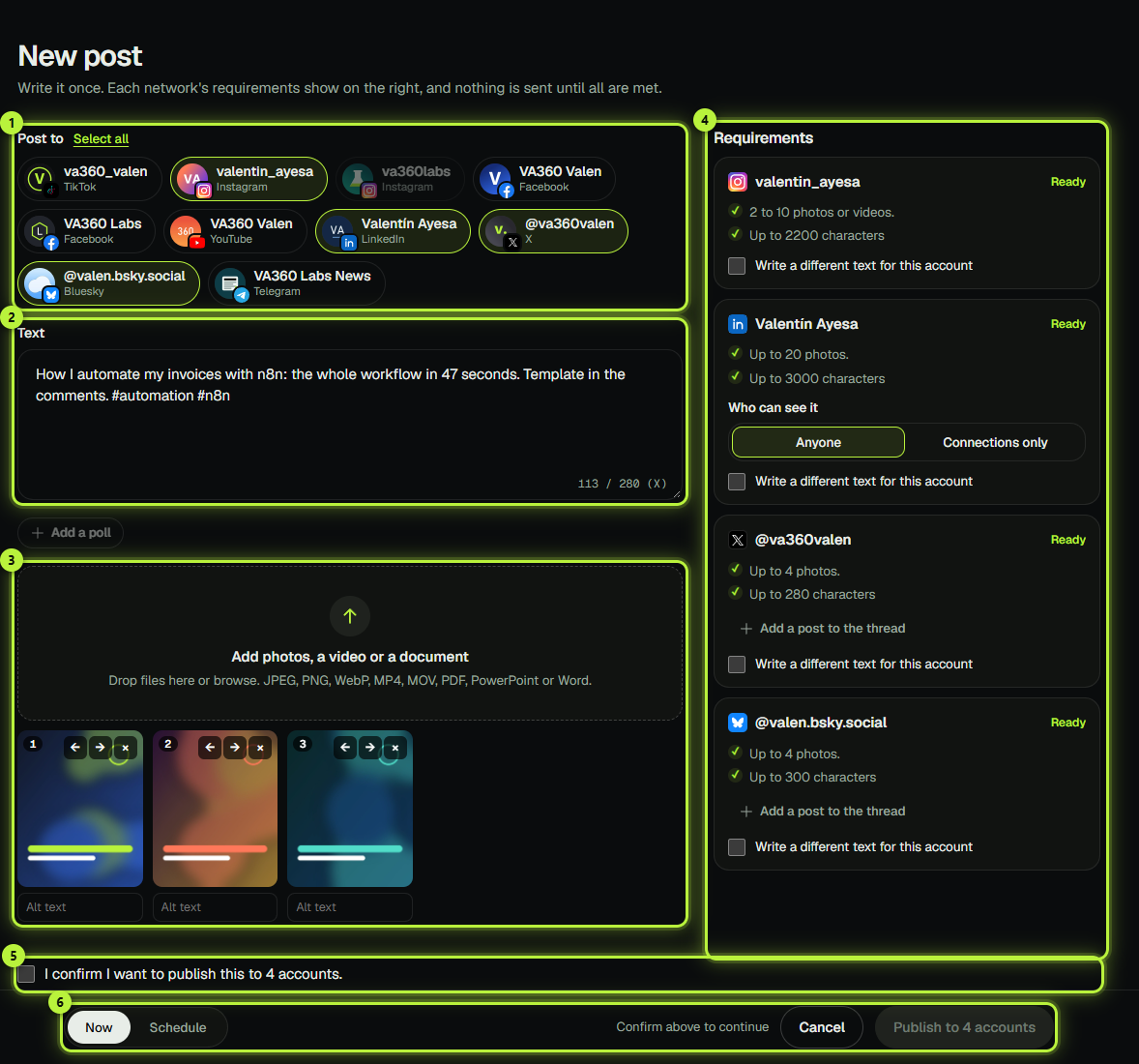
You can tell them apart at a glance. The multi-account composer starts with a Post to list of your accounts and shows Requirements on the right. The one-account form shows a single account at the top right.
Open the composer
- Press New post at the top of the sidebar.
- On the overview, press Schedule a post, or Add under a day of This week.
- On the calendar, press + on a day. The post starts scheduled for that day at 09:00.
- On the Accounts page, press New post on an account, or on the overview press an account under Accounts. With the multi-account composer, this opens it with that account already ticked. Without it, this opens the one-account form for that account.
The one-account form
If you have one account, New post opens its form directly. If you have several, Linkpost first asks Choose where this post goes. Pick an account. To switch account later, open the account menu at the top right of the form.
The form depends on the network:
- TikTok: a video, How do you want to post? (Post to my profile or Send to TikTok inbox), the caption, Who can view this video, Allow people to and Disclose video content. See TikTok.
- Instagram and Facebook: a video, or a JPEG photo for a story, and What do you want to publish? (Reel or Video, and Story), then the caption. See Instagram and Facebook.
- YouTube, LinkedIn, X, Bluesky and Telegram: a video and its text. YouTube also asks for a Title, Post as (Video or Short), Who can watch it? and Is it made for kids?. LinkedIn asks Who can see it?.
The form checks the file in your browser before it uploads anything. It tells you at once if the file is too large (That file is larger than N MB.) or the video too long (This video is N. Network takes up to M.). Lengths are written exactly, in seconds, minutes or hours, for example This video is 200 s. X takes up to 140 s.
Tick the confirmation box and press Post to network, or schedule it. See Confirm and publish.
The multi-account composer
Choose the accounts
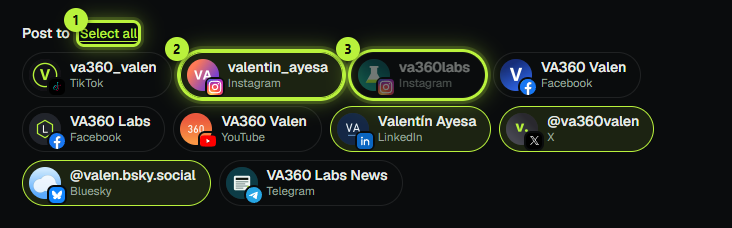
Under Post to, tick each account the post goes to. Select all ticks every account, and pressing it again unticks them all. You can choose up to 25 accounts for one post.
Some accounts appear greyed out and cannot be ticked:
- An account that needs reconnecting. Hover over it to read Reconnect this account to post to it. See Reconnect an account.
- A TikTok account whose settings Linkpost could not read from TikTok. Hover over it to read the reason.
Write the text once
Write your text in Text. It goes to every account you chose. Hashtags and links work where the network supports them.
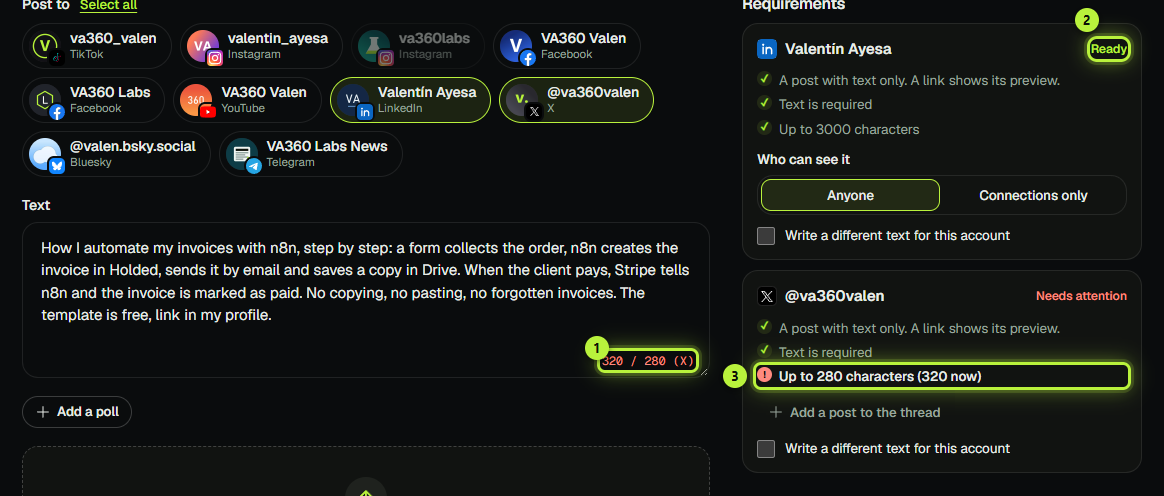
The counter in the corner of the text box shows how many characters you wrote and the strictest limit among your accounts, for example 312 / 280 (X). It is highlighted when you go over. Accounts with their own text are left out of this count.
Write a different text for one account
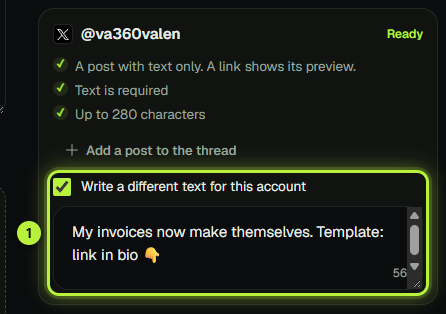
In an account's requirements, tick Write a different text for this account. A box opens with your main text in it. Change it as you like: that account gets this text instead of the main one. Use it, for example, to shorten a long text for X or to add a title line for TikTok.
The requirements panel
On the right, under Requirements, each account you chose has its own section. It lists what that network needs for this post, and checks each item as you type and add files:
- The format the post will take, for example One video. or Up to 4 photos.
- Text is required, for formats that need text.
- Up to N characters, with the current count when you go over.
- For a video: Video up to N MB and Video from N s to M. In an Instagram carousel: Each video from 3 s to 60 s.
- Where the network limits the size of each file: Files up to N MB. Telegram takes documents of up to 50 MB, and LinkedIn documents of up to 100 MB.
- For a WebM video on any network but TikTok: Takes MP4 or MOV videos.
- For a poll: 2 to N answers and Answers up to N characters.
- For each post of a thread: Thread post N: 1 to M characters.
- The network's own settings, such as Give the video a title and Say whether it is made for kids (YouTube), or Choose who can view this video and Say who this video promotes (TikTok).
Each section shows Ready when everything is met, or Needs attention when something is missing. Missing items stand out. The publish button stays off until every account is ready, and the bar at the bottom names the first thing missing, for example X: up to 280 characters (312 now).
Linkpost checks the same rules again on the server when you publish, with each network's own limits. See Formats and limits.
Choose the format
Linkpost picks the format from your files. When your files fit more than one format on a network, the account's section shows Post as with the choices. For example:
- One video to Instagram: Reel or Story.
- One video to Facebook: Video or Story.
- One photo to Instagram: Post or Story.
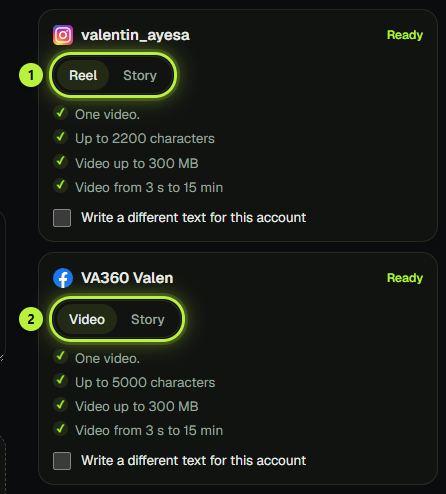
When your files fit no format on a network, its section says what the network takes, for example Takes text, up to 4 photos, one video or a poll, or Cannot mix these files in one post when you combine files the network does not take together. Remove files, or untick that account.
A story has no caption. When you choose a story with text, the section shows No caption on a story: the text is left out.
Add files
Drop files on Add photos, a video or a document, or press it to browse. The composer takes JPEG, PNG and WebP photos, MP4, MOV and WebM videos, and PDF, PowerPoint and Word documents. Only TikTok takes WebM videos. You can add up to 35 files to one post, of up to 512 MB each. Each network has lower limits: see Formats and limits.
The files appear in a row, in the order they will be published. Photos show their position number, videos their length and documents their file type. Each file has three buttons:
- ← moves it earlier.
- → moves it later.
- × removes it.
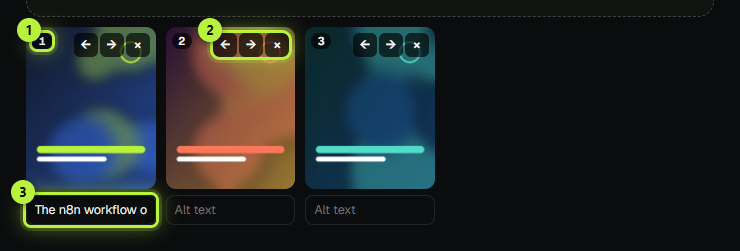
The order matters for carousels, photo albums and multi-photo posts: the networks show the files in that order. The first photo is the cover where the network uses one.
Linkpost turns every photo into a JPEG of up to 2,560 pixels on the long side. It turns phone photos the right way up, removes the camera's metadata and fills transparent areas with white. PNG and WebP photos become JPEG before the networks' rules are checked, so they can also go out as a story on Instagram or Facebook, which take JPEG photos only.
Alt text
Under each photo there is an Alt text field. Describe the photo for people who use a screen reader, in up to 1,000 characters. Linkpost sends alt text to X, Bluesky and LinkedIn. It does not send it to the other networks.
If you see an error after publishing
If the server refuses the post, your browser does not keep the files. The page asks you to Add your files again: the browser does not keep them after an error. Your text and settings stay.
Add a poll
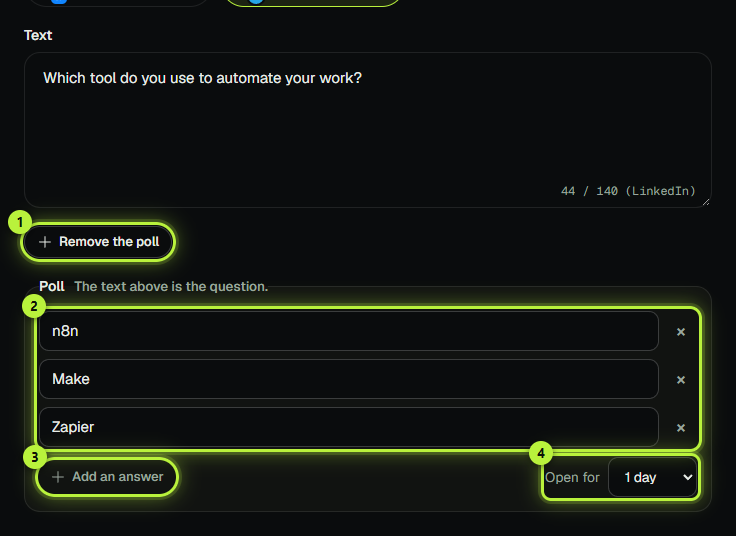
Press Add a poll. A poll goes without files, so the button is off while you have files: remove them first.
- Write the question in Text. The text is the question.
- Fill in Answer 1 and Answer 2. Press Add an answer for more, up to 10. Press × to remove one.
- Under Open for, choose 1 day, 3 days or 1 week. When the poll only goes to Telegram, Open for is hidden: Telegram polls stay open until you stop them.
Polls work on LinkedIn, X and Telegram, each with its own limits:
| Network | Question | Answers | Length of each answer | How long it stays open |
|---|---|---|---|---|
| Up to 140 characters | 2 to 4 | Up to 30 characters | The time you choose | |
| X | Up to 280 characters | 2 to 4 | Up to 25 characters | The time you choose |
| Telegram | Up to 300 characters | 2 to 10 | Up to 100 characters | Until you stop it in Telegram |
To go back to a normal post, press Remove the poll.
Write a thread
On X and Bluesky, a long text can go out as a thread: a series of posts that reply to each other. In the account's requirements, press Add a post to the thread and write the next post. Press it again for more, up to 24 more posts. Press × to remove one.
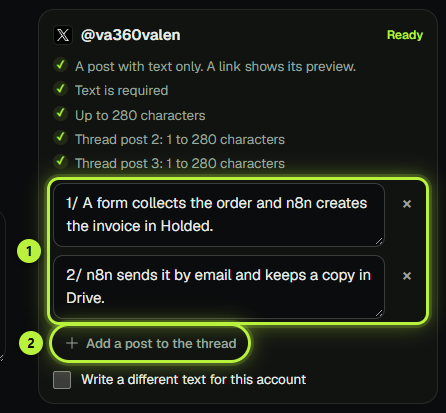
- The main text is the first post. Photos, a video or a poll go with the first post.
- Each further post needs 1 to 280 characters on X, or 1 to 300 on Bluesky.
- Each account has its own thread. A thread for X does not go to Bluesky.
Network settings
Some networks ask for settings of their own. They appear in the network's section of the requirements:
- TikTok: Posting as with the creator's name, Post to profile or Send to inbox, Who can view this video, Allow people to and the promotional content disclosure. See TikTok.
- YouTube: Title, Who can watch it and Made for kids?. With a video added, choose Video or Short, and the requirements say whether YouTube will show it as a Short. See YouTube.
- LinkedIn: Who can see it (Anyone or Connections only), for every LinkedIn post. See LinkedIn.
- Instagram: Collaborators (up to 3, on a Reel, a post or a carousel) and Tag people (up to 20, on a Reel, a story or a post), as usernames separated by commas. Each field appears only for the formats that take it. See Instagram.
Confirm and publish
Nothing is sent until you confirm. Tick I confirm I want to publish this to followed by the account, or by the number of accounts. This confirmation is required for every post.
At the bottom of the page:
- Now publishes as soon as you press the button. Schedule shows a date, a time and a timezone. See Scheduling.
- Cancel leaves without publishing.
- The publish button names where the post goes: Publish to X, Publish to 3 accounts, Schedule for 3 accounts.

When something is still missing, the button stays off and the bar says why: Choose at least one account, Choose a date and time, Confirm above to continue, or the first missing requirement.
What happens when you press the button
Linkpost checks every account with its own network's rules. If any account fails, nothing is published: the composer shows the reason under that account, and you can fix it and try again. All the posts go out, or none.
When every account passes, Linkpost creates one post for each account:
- With one account, you go to the post's page and see Sending it now. or Scheduled.
- With several, you go to the overview and see N posts on their way: one for each account. or N posts scheduled: one for each account.
Each post then goes its own way. One network can publish while another refuses. Follow each post on its page or on the calendar, and see Failed posts if one fails.
With the new pricing there is no limit on posts. On a plan with a monthly allowance, each account counts as one post on it. See Pricing and billing.