
Agency mode and team
Let an agency or a teammate manage your Linkpost account with the permissions you choose, or manage your clients' accounts and switch between them from the sidebar.
Agency mode lets several people work on one Linkpost account, each signing in with their own. A brand invites its agency, or a business invites a teammate. The people they invite then switch between their own account and the accounts they manage, from the sidebar.
An example: a brand hires an agency to run its Instagram and TikTok. The brand invites the agency from its account and gives it Connect new accounts. The agency accepts, switches to the brand's account from the sidebar, connects the accounts, schedules the week and goes back to its own. The brand stays the owner: it sees everything that is published, pays for its accounts and can take the agency's access away at any time.
In the sidebar, open Settings and then the Team tab. It has two sections:
- People who manage this account: the people you let in to manage your account, and the invitations you sent.
- Accounts you manage: the accounts that invited you to manage them, and the invitations waiting for you.
Everything here works the same from code. See Team and clients in the REST API and Agency mode in the MCP server.
What someone who manages your account can do
Everyone who manages your account can always:
- See your accounts, posts, calendar and stats.
- Create, schedule and publish posts, and reschedule, cancel or retry them.
- Create and change reports on the Analytics page.
You choose what else each person can do:
| Permission | What it allows |
|---|---|
| Connect new accounts | Connect new accounts and reconnect the ones that need it. Each new account can add to what you pay. |
| Disconnect accounts | Disconnect accounts. Their scheduled posts fail when an account is disconnected. |
| Automations and WhatsApp inbox | Use Instagram automations and the WhatsApp inbox, which reply to comments and messages in your name. |
| See billing | See your Billing tab. Read only: paying and the card stay with you. |
Some things stay yours, whatever permissions you give:
- Your settings: language, timezone and email notifications.
- Your billing details, your card, paying invoices and your monthly limit on X.
- Your security, your password and your API keys.
- Who manages your account. Only you invite people, change their permissions and take their access away.
Emails about your account, such as failed post alerts, keep going to you.
Invite someone
- Under People who manage this account, enter Their email.
- Under They can also, tick the permissions you want to give. All of them start unticked.
- Press Send invitation.
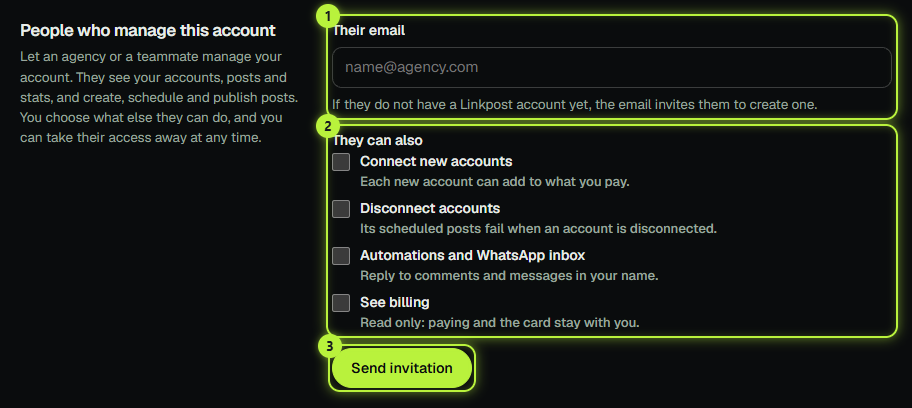
Linkpost confirms with Invitation sent to email and emails the invitation in your language. It says who invites, what the person will be able to do, and how to accept:
- If they have a Linkpost account with that email, the button See the invitation opens the invitation in Linkpost. They accept it there.
- If they do not have one yet, the button Create my account opens the sign-up page with their email filled in. They can create their account even when sign-up is closed, and the invitation waits for them. Once they confirm their email, Linkpost takes them to the invitation so they can accept it. It also waits in Settings, Team.
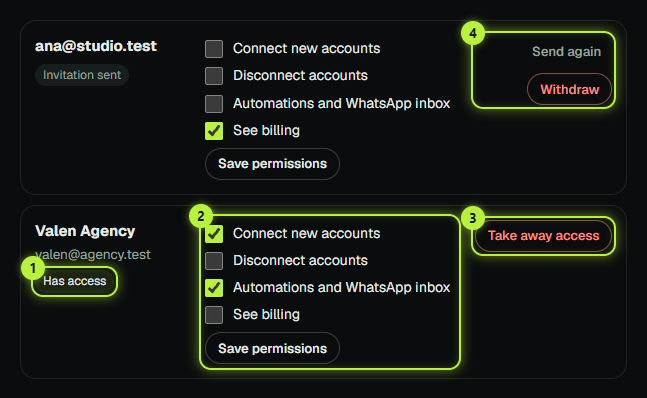
Until they accept, the person shows Invitation sent. After that, Has access.
An account can have up to 20 people with access, invitations included. With 20, inviting another shows An account can have up to 20 people with access. Remove someone first. Inviting an address that already has access or an invitation waiting shows email already has access to this account or an invitation waiting.
Change what someone can do
Each person has their permissions next to their name. Tick or untick them and press Save permissions. Linkpost confirms with Permissions of email saved. The change applies at once, even if they are working on your account right now.
Send an invitation again
If the invitation got lost, press Send again next to it. Linkpost sends a new email with a new link, and the link of the old email stops working.
Take someone's access away
- Press Take away access next to the person.
- Confirm with Take away access.
They stop seeing your account at once, and the API keys they made for it stop working. Linkpost confirms with email no longer has access to this account. If they were working on your account, Linkpost takes them back to their own and tells them You no longer have access to that account. This is your own account.
For an invitation still waiting, the button is Withdraw: the link in the email stops working.
Accept an invitation
When someone invites you, the invitation arrives by email and also shows in Linkpost:
- On your pages, a notice says who invited you, with See invitations.
- In Settings, Team, under Accounts you manage, it shows Invitation waiting with what you will be able to do.
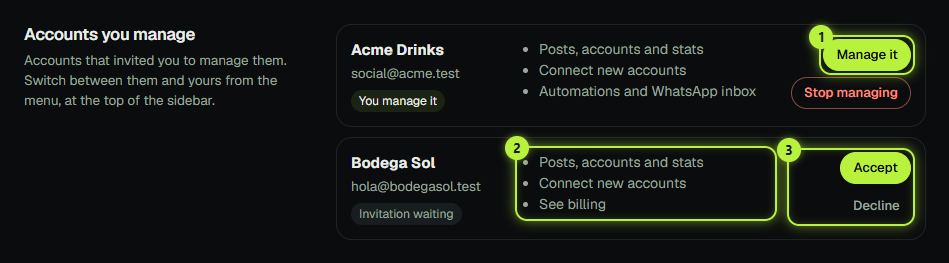
Press Accept, or Accept invitation on the page the email opens. Linkpost switches to that account at once and confirms with Invitation accepted. You are now managing name**; switch accounts from the menu.** To turn the invitation down, press Decline.
If the email opens an invitation for another address than the one you are signed in with, Linkpost says so: sign out and sign in with the address the invitation went to.
Switch between accounts
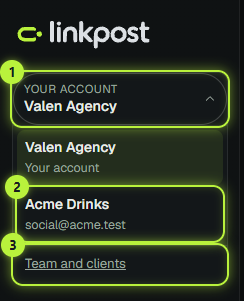
Once you manage at least one account, a switcher appears at the top of the sidebar. It shows Your account, or Managing with the name of the account you are working on.
- Open the switcher.
- Choose the account. Your own is the first one.
Linkpost opens its Overview. While you manage another account:
- Every page shows You are managing the account of name, with Back to your account.
- Overview, Calendar, Analytics, Accounts and the composer work on that account.
- Automations and WhatsApp inbox show only if that account gave you Automations and WhatsApp inbox.
- Connecting or disconnecting an account without the permission shows name has not given you permission to connect accounts. or name has not given you permission to disconnect accounts.

Settings stays yours: your security, your account and your team. Those pages remind you with These settings are yours, not those of the account you are managing. The Billing tab is the exception. With See billing, it shows the billing of the account you manage, with This is the billing of name**, read only. Paying and the card stay with them.** Without it, you cannot open it.
The link Team and clients at the bottom of the switcher opens Settings, Team.
Stop managing an account
Under Accounts you manage, press Stop managing next to the account and confirm. You lose access until they invite you again, and your API keys for that account stop working.
If the account is suspended, nobody can manage it until it is active again.
API keys for an account you manage
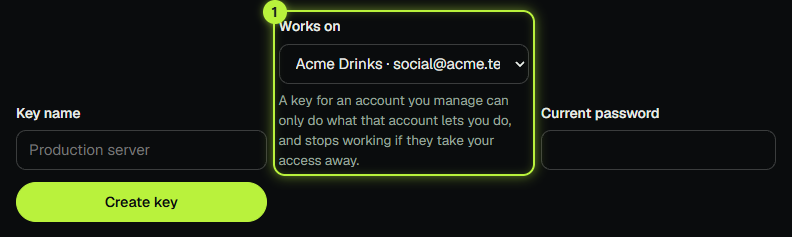
When you manage at least one account, creating an API key asks which account it Works on: Your account, or one you manage. A key for an account you manage:
- Works on that account only, within the permissions it gave you.
- Shows Works on name in your list of keys.
- Stops working when they take your access away or you stop managing the account.
The key is yours: it is listed under your API keys, not theirs. See Authentication.