
Account settings
Change the language and the timezone of your account, choose which emails Linkpost sends you, and delete your account and data.
In the sidebar, open Settings, then the Account tab. Security settings, such as your password and two-factor authentication, are in the Security tab: see Security. Your billing details, card and invoices, or your plan, are in the Billing tab: see Pricing and billing. Who manages your account, and the accounts you manage, are in the Team tab: see Agency mode and team.
Profile
The Profile section shows your Name and Email. These details cannot be changed here. To change them, contact Linkpost support.
Language
Linkpost is available in English, Español and Português (Brasil).
- Under Language, choose your language.
- Press Save language.
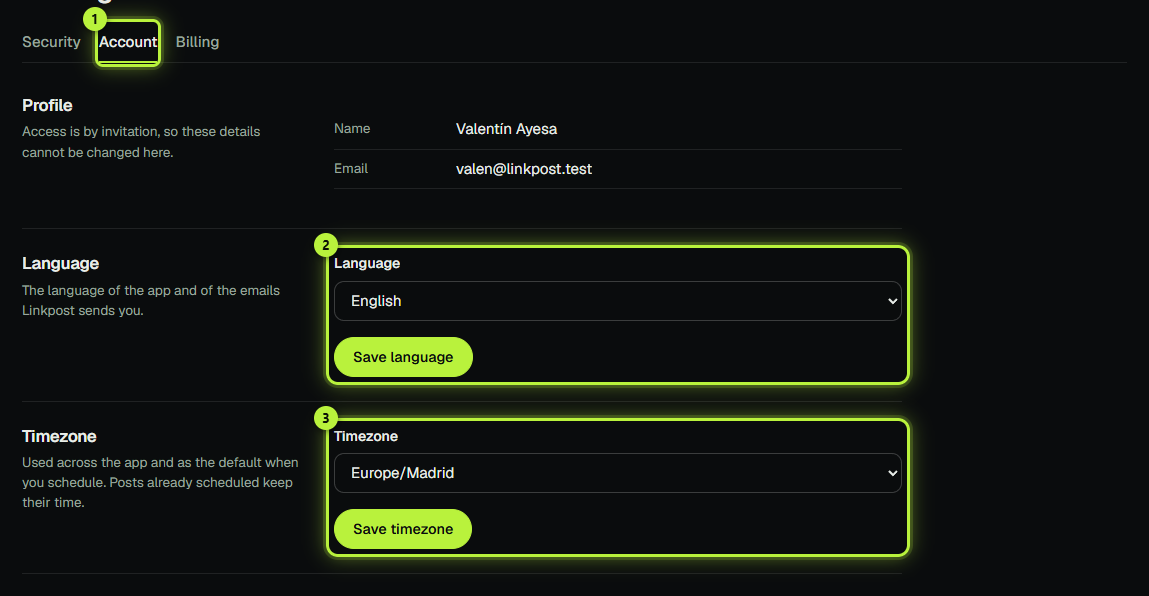
Linkpost confirms with Linkpost is now in language. The language applies to the whole app and to the emails Linkpost sends you, such as failed post alerts.
Some parts stay in English whatever you choose: the REST API and the MCP server answer in English. The exception is the reason a post failed, which they give in your language. See Post statuses.
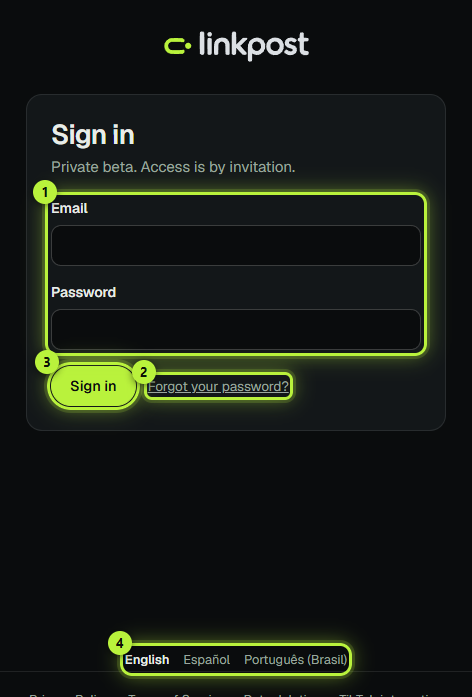
Before you sign in, you can also switch language with the links at the bottom of the sign-in pages. That choice lasts for the visit. A new account starts in the language you picked there, or else in your browser's language.
Timezone
Your timezone is used for every date and time in the app, and as the default timezone when you schedule a post.
- Under Timezone, choose your timezone. Timezones are listed by region and city, for example Europe/Madrid or America/New York.
- Press Save timezone.
Linkpost confirms with Timezone set to timezone. Dates across the app now use it.
On your first visit, Linkpost takes the timezone from your browser and saves it. It never changes a timezone you chose yourself.
Posts you already scheduled keep their time when you change your timezone. Each post keeps the timezone it was scheduled in. See Timezones.
Email notifications
Linkpost emails you about events that need your attention. Under Email notifications, tick the topics you want and press Save email preferences.
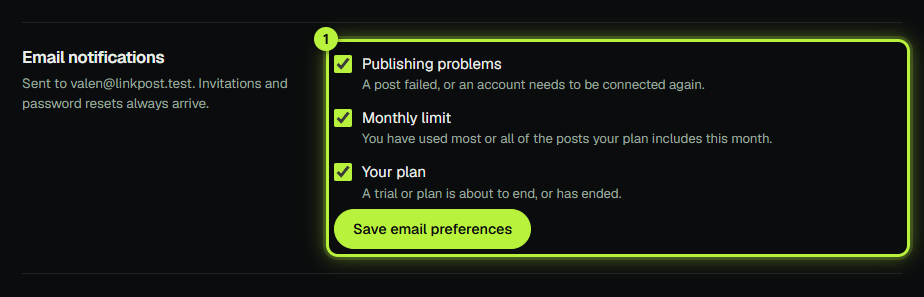
| Topic | When Linkpost emails you |
|---|---|
| Publishing problems | A post failed, or an account needs to be connected again. |
| Monthly limit | You used most or all of the posts your plan includes this month. |
| Your plan | A trial or plan is about to end, or has ended. |
Monthly limit and Your plan only concern accounts that still have plans. See Accounts still on plans.
All topics are on until you turn them off. Emails go to the address of your account.
Some emails always arrive, whatever you choose: invitations, the link to confirm your email, password reset links, and payment emails for extra connections, when a payment did not go through or your bank asks you to confirm it. See If a payment fails.
How often Linkpost emails you
- Failed posts: Linkpost waits two minutes before it sends the email, and sends at most one email per account each hour. When several posts to the same account fail together, one email counts them all. You get no email when you caused the failure yourself, for example by disconnecting the account.
- Reconnect: one email each time an account loses access.
- Monthly limit: one email when you reach 80% of your monthly posts, and one when you use them all.
- Your plan: one email 3 days before a trial or plan with an end date ends, and one when it ends.
- Payments for extra connections: one email when Stripe cannot charge an invoice, and one when your bank asks you to confirm the payment. Stripe's later tries on the same invoice send no more.
Delete your account
Deleting your account removes your data from Linkpost for good. It cannot be undone.
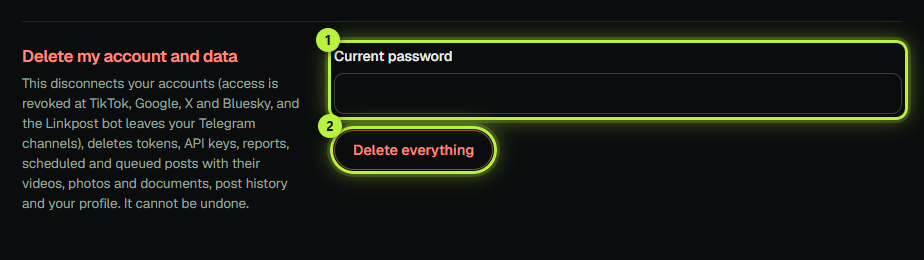
- Under Delete my account and data, enter your Current password.
- Press Delete everything.
- Confirm with Delete everything.
Linkpost then:
- Disconnects every account. It cancels its access at TikTok, YouTube (Google), X and Bluesky, and the Linkpost bot leaves your Telegram channels.
- Deletes every access token, API key and analytics report.
- Deletes every file waiting to be published. Your scheduled posts never go out.
- Deletes your post history, your analytics data and your profile.
- Signs you out on every device.
You see Your account and data were deleted. on the sign-in page.
Linkpost keeps its security log for 90 days, without any link to your account, and then deletes it. See Privacy and data.
Before you delete your account, remember that posts already published stay on the networks. Linkpost does not delete them. Delete them on each network if you want them gone.