
Security
Protect your Linkpost account with a strong password and two-factor authentication, keep recovery codes, reset a forgotten password and sign out other devices.
Your connected accounts can publish in public, so anyone who signs in as you can post as you. Protect your sign-in with a strong password and two-factor authentication.
In the sidebar, open Settings. The Security tab opens first.
Password rules
A Linkpost password must have:
- At least 12 characters.
- Upper case and lower case letters.
- At least one number.
- At least one symbol.
Linkpost also refuses passwords that appear in known data breaches. A password manager can create and remember a strong password for you.
Change your password
- Under Change password, enter your Current password.
- Enter the New password and type it again in Repeat new password. It must be different from the current one.
- Press Change password.
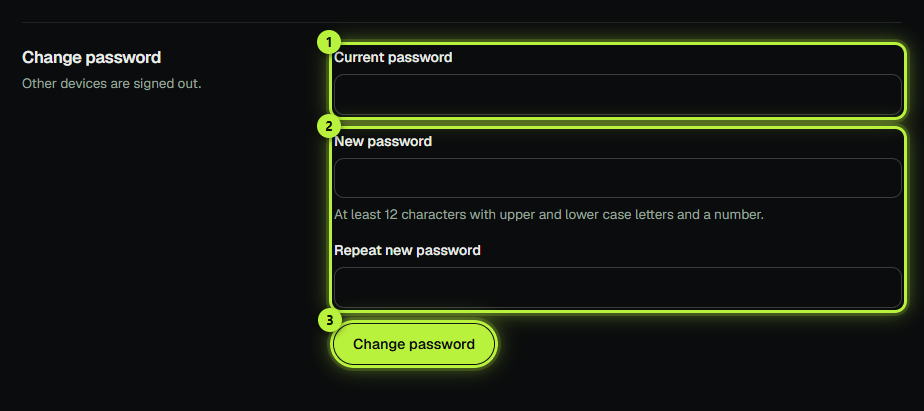
Linkpost confirms with Password changed. Other devices were signed out. You stay signed in on this device. Every other browser and device where you were signed in is signed out.
Reset a forgotten password
- On the sign-in page, press Forgot your password?.
- Enter your Email and press Send reset link.
- Open the email and follow the link. It works for 60 minutes.
- Enter your Email, a New password, the same password again in Repeat password, and press Update password.
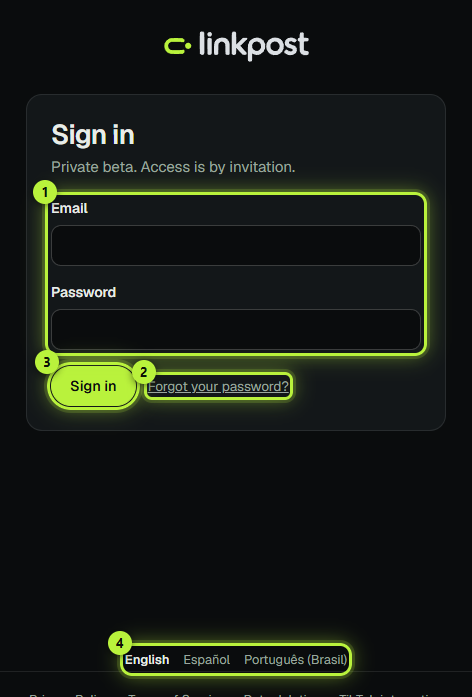
You see Password updated. You can sign in now. Every device where you were signed in is signed out.
Linkpost shows the same message whether or not the email has an account: If that email has an account, a reset link is on its way. This keeps others from finding out who uses Linkpost. If the link no longer works, you see This reset link is invalid or has expired. Ask for a new one.
Turn on two-factor authentication
With two-factor authentication, signing in needs your password and a 6 digit code from an app on your phone. Someone who learns your password still cannot sign in.
You need an authenticator app, such as 1Password, Google Authenticator or Authy.
- Under Two-factor authentication, enter your Current password and press Set up.
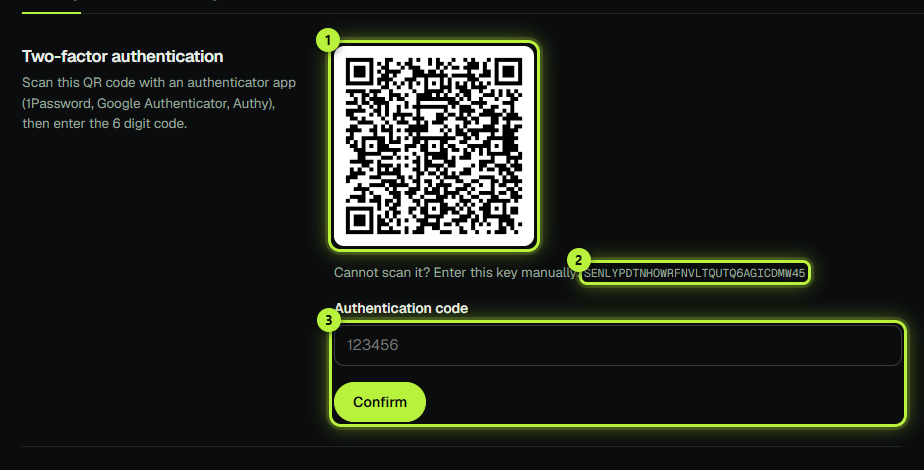
- Scan the QR code with your authenticator app. If you cannot scan it, press the option to enter a key by hand in your app, and type the key shown under Cannot scan it? Enter this key manually.
- Enter the 6 digit code your app shows in Authentication code and press Confirm.
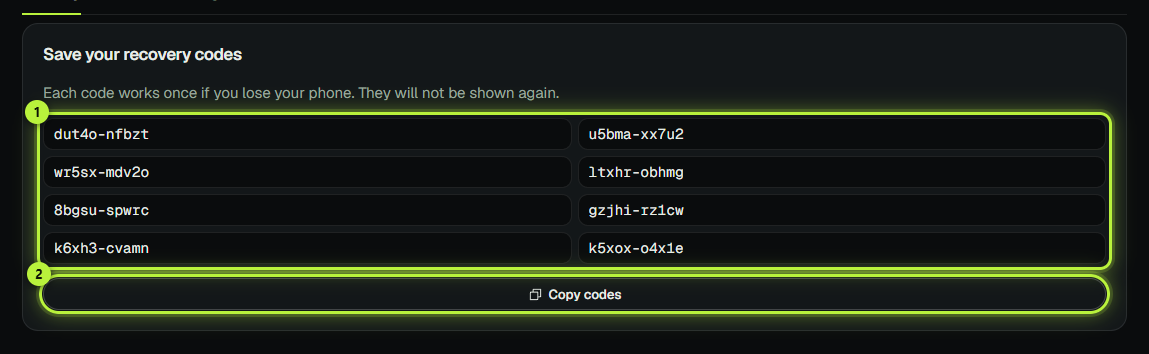
- Linkpost shows Save your recovery codes. Copy them with Copy codes and keep them somewhere safe, away from your phone. They are not shown again.
Linkpost confirms with Two-factor authentication is on.
If Linkpost says That code is not valid. Check the time on your phone and try again., make sure your phone sets its time automatically. The codes depend on the exact time.
Sign in with two-factor authentication
After your email and password, Linkpost asks for the Two-factor code. Enter the 6 digit code from your app and press Verify. You have 10 minutes to enter it; after that, sign in again.
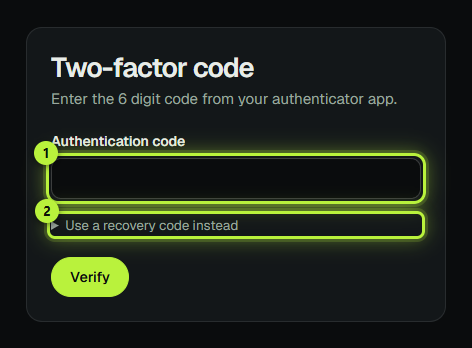
Each code works once. If a code is refused with The code is invalid or has already been used., wait for the next code in your app.
Recovery codes
Recovery codes let you sign in when you do not have your phone. You get 8 codes. Each one works once.
To use one, press Use a recovery code instead on the two-factor page, enter a code and press Verify.
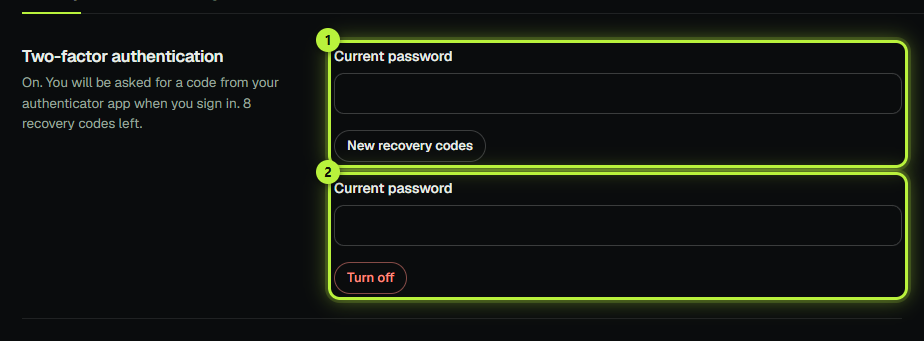
The security page shows how many codes you have left. To get a new set, enter your Current password and press New recovery codes. The old codes stop working at once, and the new ones are shown once. Save them.
If you lose your phone and your recovery codes, you cannot sign in by yourself. Contact Linkpost support to get two-factor authentication reset on your account.
Turn off two-factor authentication
Under Two-factor authentication, enter your Current password and press Turn off. Linkpost confirms with Two-factor authentication is off. Your recovery codes stop working.
Keep it on whenever you can. To move it to a new phone, turn it off and set it up again with the new phone. Linkpost does not show the key again after setup.
Sessions and signing out
- To sign out, press the sign-out button next to your email at the bottom of the sidebar.
- Linkpost signs you out after 7 days without activity. To stay signed in for 30 days on that browser, tick Keep me signed in for 30 days when you sign in. Leave it unticked on a computer other people use.
- Changing or resetting your password signs out every other device.
- Linkpost does not show a list of the devices where you are signed in. To sign out everywhere else, change your password.
Sign-in protection
Linkpost limits how many sign-in attempts can be made in a short time, from one address and for one email. After too many, it asks you to wait: Too many requests. Wait a minute and try again. The same applies to two-factor codes and password reset requests.
If an account is suspended, signing in shows This account is suspended. Write to us if you think this is a mistake.
API keys
API keys let your code and AI assistants publish as you, without your password or two-factor code. Treat them like passwords. Create and revoke them under Developers, then API, in the sidebar. A key is shown once, and revoking it stops it at once. See the developer guide.