
The calendar
See every post by month, by week or as a list, filter by network and status, move scheduled posts by dragging them, and follow each post through its statuses.
The calendar shows every post you published or scheduled, on the day it went out or will go out. In the sidebar, open Calendar. The number next to it is how many posts are scheduled.
All times on the calendar are in your saved timezone. The top of the page says which one, with a Change link to your settings.
Month, week and list
Choose a view at the top of the page:
- Month shows the whole month. Each day lists up to 3 posts. When there are more, a link such as 2 more opens the rest in the week view. Coloured dots under a day summarise the status of its posts.
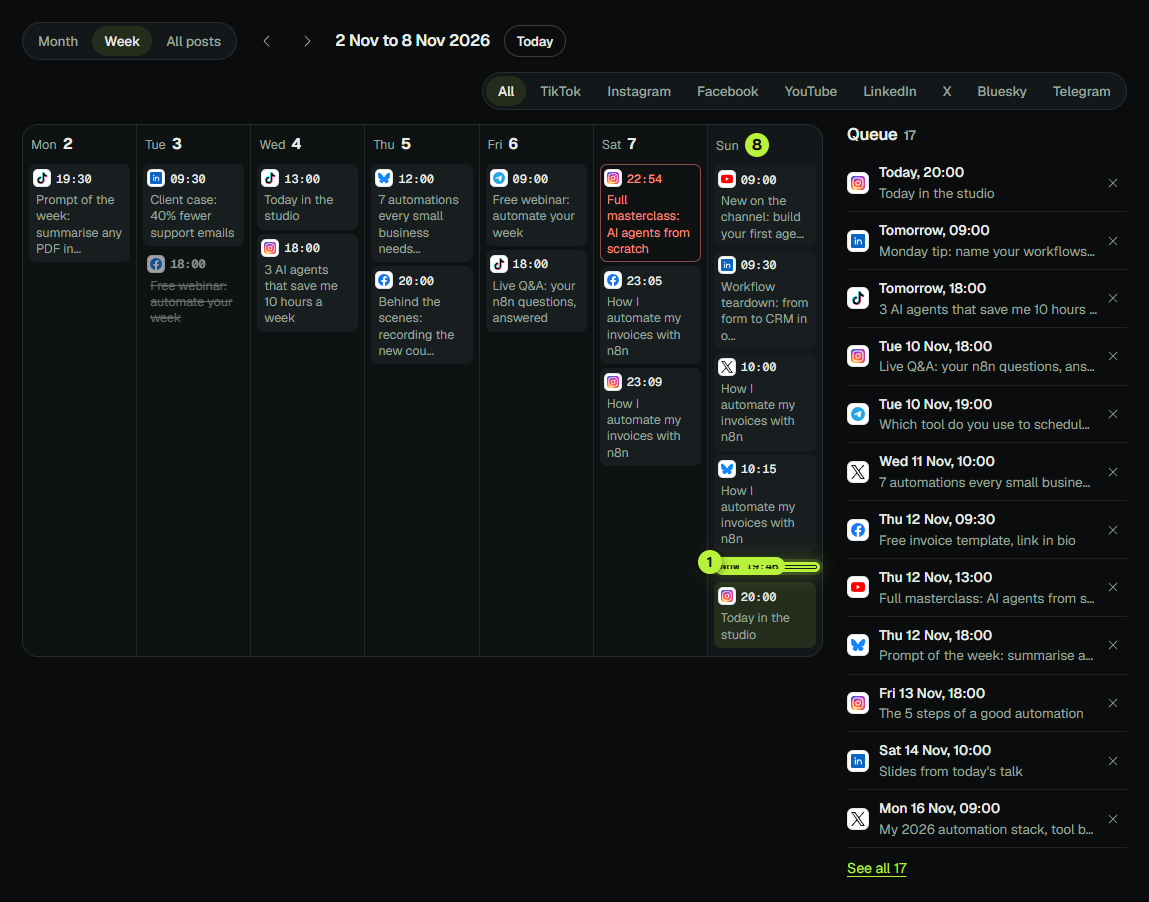
- Week shows seven days, Monday to Sunday, with every post of each day. On today, a Now line marks the current time.
- All posts is a table of every post, newest first, 25 per page. Use Newer and Older to move between pages.
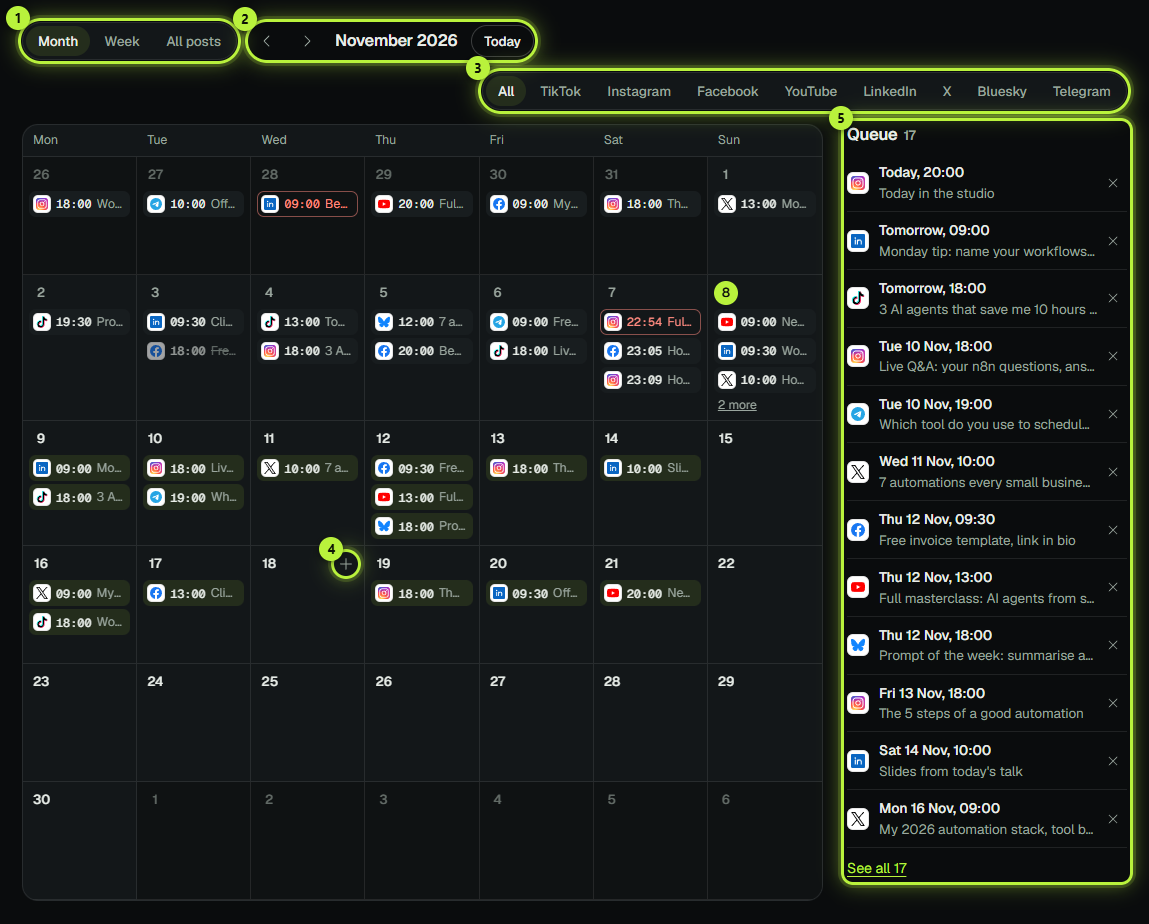
In the month and week views, use the arrows to go back or forward, and Today to return to the current month or week. Press a day's number to open that week.
On a phone, the month view also lists the month's posts by day under the grid.
Each post shows its network, its time and the start of its text. Press it to open its page.
Where a post appears:
- A scheduled post appears at its scheduled time.
- A post published right away appears at the time you created it.
Filter by network and status
On the right of the toolbar, choose All or one network. Linkpost offers only the networks you connected or posted to.
In All posts, you can also filter by status: Any status, Scheduled, Published, In TikTok inbox, Failed or Canceled.
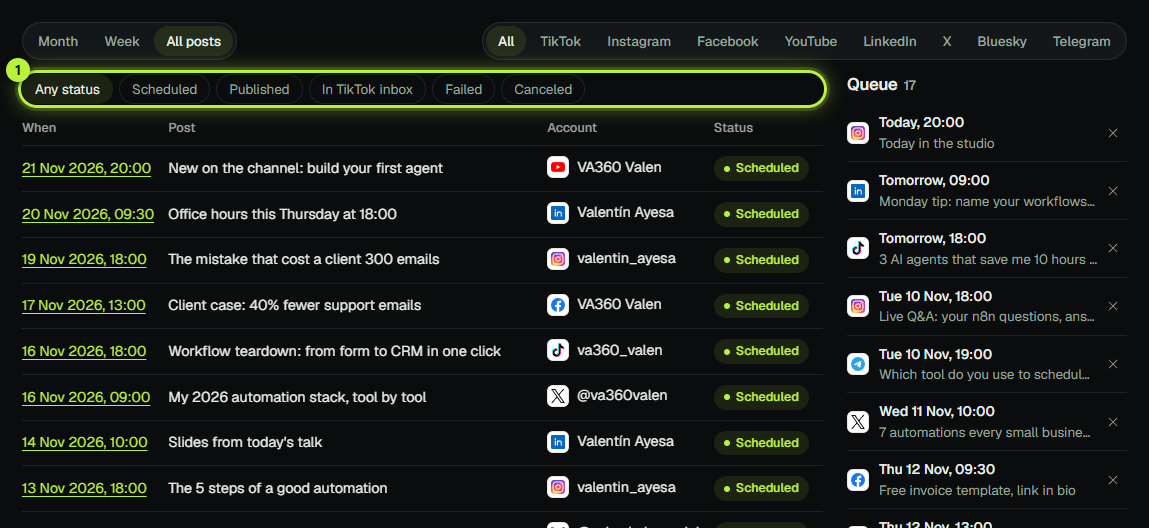
On the Accounts page, Manage and then See network posts opens this list filtered by that account's network.
The queue
Next to the calendar, Queue lists the next 12 scheduled posts, with the total number. Each one shows its day, time and text.
- Press a post to open it.
- Press × to cancel it. Confirm with Cancel post. Its files are deleted.
- When there are more than 12, See all followed by the total opens the list of every scheduled post.
The queue follows the network filter.
Create a post on a day
Press + on a day of the month or week view. The composer opens with the post scheduled for that day at 09:00. Change the time before you publish. Past days have no +.
Move a post to another day
In the month or week view, drag a scheduled post to another day. It keeps its time of day, in your saved timezone.

- Only scheduled posts can be dragged. Published, failed and canceled posts stay where they are.
- You cannot drop a post on a past day.
- If you drop a post on today at a time that has already passed, Linkpost refuses with Pick a time at least a minute from now.
- If the post went out while you were dragging it, Linkpost refuses with This post already went out, so it can no longer be moved.
When Linkpost refuses, it shows the reason with Reload and Close.
To change the time of day, open the post and use Change the schedule. See Scheduling.
Post statuses
Every post goes through some of these statuses. The colour of a post on the calendar follows its status.
| Status | What it means |
|---|---|
| Scheduled | It waits for its time. The file stays on Linkpost's private storage until then. You can move or cancel it. |
| Queued | Its time came, or you published it now. Linkpost is about to send it. |
| Uploading to network | Linkpost is sending the file to the network. |
| Network is processing the video | The network has the file and is preparing it. This can take a few minutes. For other formats the status names what the network prepares: the photo (a photo story), the photos, the carousel, the document, or the post for text and polls. |
| Published | It is live on your profile, Page or channel. |
| Waiting in your TikTok inbox | A TikTok draft is in your inbox. Open TikTok to finish and post it. In lists this shows as In TikTok inbox. |
| Failed | The post did not go out. Its page says why. See Failed posts. |
| Canceled | You canceled it before it went out. Its file was deleted. |
Published, Waiting in your TikTok inbox, Failed and Canceled are final: the post does not change after that, except that you can send a failed post again.
Developers see the same statuses in the API, with names such as inbox_delivered. See the developer guide.
The post's page
Press any post to open its page, Post status. It shows:
- The type of post and the account, for example Instagram reel to account.
- The status, a one-line explanation, and the steps the post goes through. The page updates by itself while the post moves on.
- The caption, if it has one.
- On the side: when it is scheduled for, when it was created and finished, and where it was Sent from: Linkpost app, REST API or MCP. For TikTok posts, also Who can view, Allowed interactions and the Disclosure. Once published, the Network id of the post.
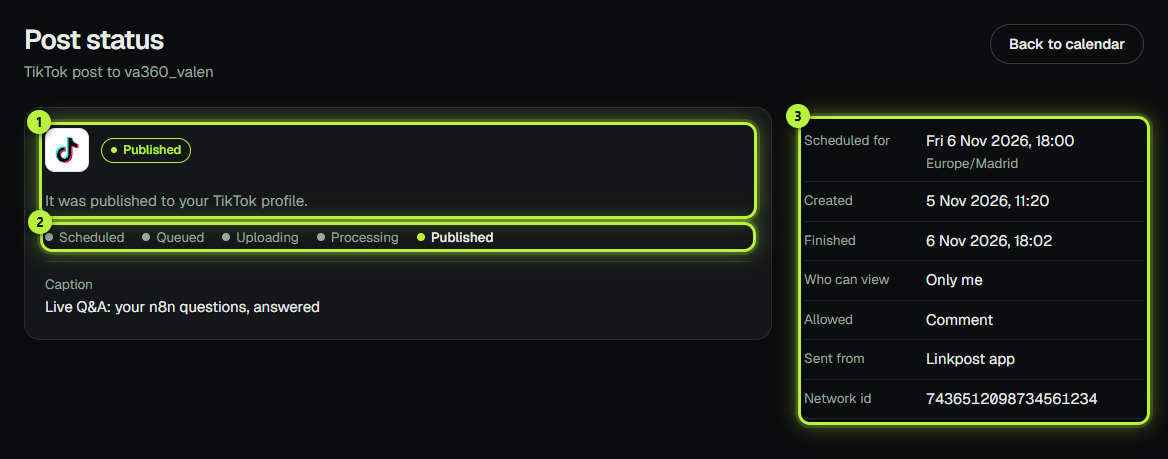
From this page you can move or cancel a scheduled post. For a failed post you can press Retry while its files are kept, Edit post, Post it again or Remove post. See Failed posts. Press Back to calendar to return.
Linkpost does not edit or delete posts that went out. To change or remove a published post, do it on the network.