
X
Connect an X account through your own X app and publish posts with a video, text, photos, polls and threads. X bills each post to your app's credits at its own price, and Linkpost charges nothing for X. With the steps in the X Developer Console, X's limits and the fixes for its errors.
With X you can publish a post with a video. Text posts, photo posts, polls and threads are pending Meta and TikTok certification.
Why you use your own X app
Since February 2026, X charges for every post made through its API. X sets that price, and it changes it.
Linkpost does not want to mark that price up, or to bill it to you at the end of the month. So everyone posts to X with their own X app:
- You buy credits in X's console, and X takes the price of each post from them.
- You see every post you pay for in X's console.
- You decide how much to spend.
X is open to every Linkpost account, with no card, paid plan or monthly limit for its posts. The X account itself counts as one connected account, like any other.
What X costs
Linkpost charges nothing for X. X charges your X app for each post, at the price its console shows, and takes it from the credits you bought there.
- X sets the price. It can depend on what the post has, such as a link, and X can change it. Check the current prices in the X Developer Console.
- Every post of a thread is one post for X. X can also charge other calls, such as the alt text of a photo. Its console lists what it charges.
- Nothing on your Linkpost invoice. Linkpost adds no markup and no X line to your invoices.
- Without credits, X refuses the posts. Linkpost then shows X rejected the post: your X app has no credits left. Add credits in the X Developer Console. Add credits and press Retry. If the console offers automatic top-ups, turn them on so a scheduled post does not fail for lack of credits.
- The connection counts as usual. An X account is one connected account, like any other. See Pricing and billing.
Before you connect X
- An X account to sign in to the X Developer Console. The app, its credits and X's billing belong to that account. It can be the account you post to, or another one.
- A card, to buy credits in X's console. Linkpost does not need it for X.
- About 10 minutes, the first time. You create the app once, and every X account you connect uses it.
Create your X app
The names below are the ones X shows in its console, in English. X changes its console from time to time: if a name does not match, look for the same thing on that screen.
-
Open the X Developer Console and sign in with your X account. Accept the developer agreement.
-
Create an app, with a name and a description. The console may show an API Key, an API Secret and a Bearer Token. Linkpost does not use them.
-
In the app's settings, open User authentication settings and press Set up (or Edit). Fill it in like this:
Field Value App permissions Read and write Type of App Web App, Automated App or Bot Callback URI https://linkpost.app/connect/x/callbackWebsite URL https://linkpost.app- The Callback URI must match exactly: with
https, and with no slash at the end. - Do not choose Native App or Single Page App: they give no Client Secret.
- The Callback URI must match exactly: with
-
Press Save. The console shows the OAuth 2.0 Client ID and Client Secret. Copy both now: X shows the Client Secret only once. You find the Client ID again, and can regenerate the secret, under Keys and tokens.
-
Buy credits in the console. Without credits, X refuses the posts.
Connect X
- In the sidebar, open Accounts.
- Press Connect account and choose X.
- The first time, the window shows Connect X with your own app, with the steps and the Callback URI and Website URL ready to copy.
- Paste the Client ID and the Client Secret of your app, and press Save and connect X. Linkpost stores the secret encrypted and never shows it again.
- X's screen opens. Sign in with the account you want to connect, and authorize Linkpost.
- The window closes. The message X account connected. appears and the account is listed as a Profile.
Once your keys are saved, Connect account and Reconnect go straight to X's screen. To connect another X account, sign in to it on X's screen: every X account you connect uses the same app and its credits.
Programs and AI assistants can save the keys too, with the REST API or the MCP tools get_x_app, set_x_app and remove_x_app. See MCP tools.
Linkpost asks X for these permissions:
| Permission | What it allows |
|---|---|
tweet.read, users.read |
Read your profile and your posts. |
tweet.write |
Publish posts. |
media.write |
Upload photos and videos. |
offline.access |
Keep access without asking you to sign in again, so scheduled posts can go out. |
If X does not give the long-term access, Linkpost shows X did not give Linkpost long-term access. Remove Linkpost in your X settings, then connect again.
Change or remove your keys
Your keys are on the Connect X with your own app page: open linkpost.app/connect/x/app while signed in to Linkpost. It shows the saved Client ID. The Client Secret is never shown: its field says Saved. Leave it empty to keep it.
- A new secret for the same app. If you regenerate the Client Secret under Keys and tokens, the old one stops working at once. Paste the new one on the page, keep the same Client ID and press Save and connect X. Your X accounts keep working, with no need to reconnect them.
- Another app. Saving a different Client ID changes to another app. Every X account you have then shows Reconnect needed, because its access belongs to the old app, and its scheduled posts fail until you reconnect it. The new app needs the same settings and its own credits.
- Remove the keys. Press Remove the keys. Above the button, the page says how many X accounts use them. Linkpost confirms with The keys of your X app were removed. Your X accounts will post again once you add keys and reconnect them. Your X accounts stay listed with Reconnect needed, and their scheduled posts fail until you save keys and reconnect them. The app itself stays in X's console: delete it there if you no longer need it.
To reconnect an account, see Reconnect an account.
What you can publish
| Format | Files | Text | Limits |
|---|---|---|---|
| Video | One video: MP4 or MOV | Up to 280 characters | Up to 140 seconds. Up to 512 MB. At least 32 pixels on each side, from 1:3 to 3:1 in shape and up to 60 frames per second. |
| Text | No files | 1 to 280 characters | |
| Photos | 1 to 4 photos: JPEG, PNG or WebP | Up to 280 characters | |
| Poll | No files | The question, up to 280 characters | 2 to 4 answers of up to 25 characters. Open for 1 day, 3 days or 1 week. |
Every format can continue as a thread. See Threads.
Video length. Linkpost accepts videos of up to 140 seconds on X, the length X allows for most accounts. A longer video is refused before upload.
Video size, shape and frame rate. X's API takes videos of at least 32 pixels on each side, from 1:3 to 3:1 in shape (width to height) and up to 60 frames per second. Linkpost checks all three before uploading, and refuses a video outside them with a message such as X takes videos from 1:3 to 3:1 in shape (width to height), and this one is 1080 × 3840. Crop it to a shape in between, such as 9:16.
Counting characters. Linkpost counts every character as one. X counts some characters its own way, so a text right at 280 characters can still be refused by X.
Threads
A thread is a series of posts that reply to each other. In the multi-account composer, the X requirements show Add a post to the thread. Each press adds one more post under the first one.
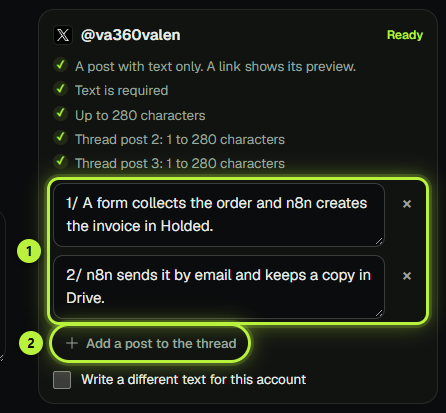
- The main text is the first post. Your photos, video or poll go with the first post.
- You can add up to 24 more posts. Each one needs 1 to 280 characters.
- Linkpost publishes them in order, each as a reply to the one before.
If a thread fails halfway, Retry continues from the post that failed. The posts that already went out are not published twice.
Polls
The text of the post is the question. Add 2 to 4 answers of up to 25 characters, and choose how long the poll stays open under Open for: 1 day, 3 days or 1 week. A poll goes without files.
Alt text
The alt text you write for each photo in the composer is sent to X, up to 1,000 characters, so screen readers can describe the photo.
Numbers from X
Linkpost does not read X numbers yet. Analytics shows what you published to X through Linkpost and whether it went out.
Disconnect X
On the Accounts page, open Manage on the account and choose Disconnect. Linkpost cancels its access at X and deletes its tokens. Your keys stay saved for your other X accounts.
If something goes wrong
| Message | What it means | What to do |
|---|---|---|
| X takes up to 280 characters (N now). | The text is too long. | Shorten it, or continue in a thread. |
| X needs some text. | A text post or a poll has no text. | Write the text. |
| Post N of the thread needs 1 to 280 characters. | A post in the thread is empty or too long. | Fix that post or remove it. |
| X polls need 2 to 4 answers. | The poll has too few or too many answers. | Add or remove answers. |
| X poll answers take up to 25 characters. | An answer is too long. | Shorten it. |
| X takes videos from 1 s to 140 s. | The video is longer than 140 seconds. | Trim it to 140 seconds or less. |
| That file is too large for this network. | The video is larger than 512 MB. | Compress the video. |
| Upload an MP4 or MOV video. | The file is not a supported video. | Export it as MP4. |
| X takes videos of at least 32 pixels on each side, and this one is W × H. Export it bigger, for example at 1080 × 1920. | The video is too small for X. | Export it again at 1080 × 1920. |
| X takes videos from 1:3 to 3:1 in shape (width to height), and this one is W × H. Crop it to a shape in between, such as 9:16. | The video is narrower than 1:3 or wider than 3:1. | Crop it to a shape such as 9:16 and export it again. |
| X takes videos of up to 60 frames per second, and this one has N. Export it at 30 frames per second. | The video has more than 60 frames per second. | Export it again at 30 frames per second. |
| X takes text, up to 4 photos, one video or a poll. | The files do not fit any X format, for example 5 photos. | Remove files until they fit. |
| X could not process the video: reason | X failed while processing. | Export the video again and send it again. |
| X is taking too long to process the video. | X did not finish in time. | Check your profile before you send it again. |
| Paste the OAuth 2.0 Client ID of your X app. | The Client ID field is empty. | Paste the Client ID from Keys and tokens. |
| That does not look like an OAuth 2.0 Client ID. Copy it from Keys and tokens in the X Developer Console. | What you pasted is not a Client ID. Often it is the API Key or the Bearer Token. | Copy the OAuth 2.0 Client ID from Keys and tokens. |
| Paste the OAuth 2.0 Client Secret of your X app. | The Client Secret field is empty, the first time or with a new Client ID. | Paste the Client Secret. If you lost it, regenerate it under Keys and tokens. |
| That does not look like an OAuth 2.0 Client Secret. Copy it from Keys and tokens in the X Developer Console. | What you pasted is not a Client Secret. Often it is the API Secret. | Copy the OAuth 2.0 Client Secret from Keys and tokens. |
X did not let Linkpost in. Check the Client ID and Client Secret of your X app, and that its callback URL is https://linkpost.app/connect/x/callback. |
X refused to connect the account with your app. | See If X does not let Linkpost in. |
| X did not accept the keys of your X app. Check its Client ID and Client Secret in Linkpost. | X refused your keys, often because the Client Secret was regenerated in X. | Paste the current keys on your X app page, then use Retry. |
| Add the keys of your own X app in Linkpost to connect and post to X: X bills its API to you, and Linkpost charges nothing for it. | Your keys were removed, so your X accounts cannot post. | Save your keys, reconnect the account, then use Retry. See Connect X. |
| X rejected the post: your X app has no credits left. Add credits in the X Developer Console. | Your app's credits at X ran out. | Buy credits in the X Developer Console, then use Retry. |
| X access expired or was revoked. Connect the account again. | X no longer accepts the access. | Reconnect the account. |
| X refused Linkpost's access. Connect the account again. | X refused the access while posting. | Reconnect the account. |
| X rejected the post: reason | X refused the post and gave a reason. | Fix what the reason says. |
| X asked us to slow down. We will retry shortly. | Too many posts in a short time. Linkpost retried and gave up. | Use Retry later. |
| X is temporarily unavailable. We will retry shortly. | X did not answer. | Use Retry later. |
If X does not let Linkpost in
When X refuses to connect an account with your app, check these in the X Developer Console:
- The keys. The Client ID and Client Secret are the OAuth 2.0 ones, from Keys and tokens, not the API Key, the API Secret or the Bearer Token. If you regenerated the secret, paste the new one.
- The Callback URI. Under User authentication settings, it is exactly
https://linkpost.app/connect/x/callback: withhttps, and with no slash at the end. - The type of app. It is Web App, Automated App or Bot.
- The permissions. They are Read and write.
Fix what is wrong, paste the keys again on your X app page if they changed, and press Save and connect X.
For general help with failed posts, see Failed posts.