

Connect your AI agent.
Linkpost runs a hosted MCP server. Connect it to Claude, Cursor, VS Code, n8n or your own agent, and the agent can list your accounts, publish and schedule posts and check how they went. Nothing goes out until you confirm it.
1Create a key
In Linkpost, under Developers, open API and create a key for this agent. With one key per agent, you can stop one without stopping the others.
2Add the server
Copy the settings for your client from the list below: the address
https://linkpost.app/mcpand your key in anAuthorizationheader.3Ask in your own words
Ask the agent to schedule a post or to check one. Before it publishes, it tells you the account, the text and the time, and waits for your yes.
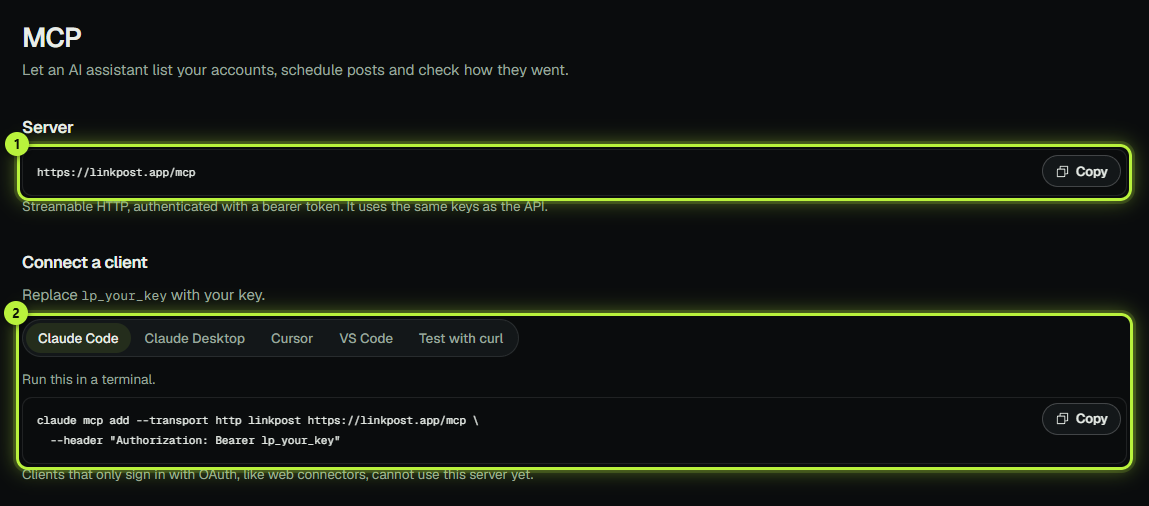
Settings for each client
Every client needs the same three things: the address https://linkpost.app/mcp, the HTTP transport (also called Streamable HTTP, not SSE) and an Authorization header with your key. Replace lp_your_key with your key.
Run this command in a terminal. Then run claude mcp list: Linkpost should show as connected. Add --scope user before the name to use it in every project.
claude mcp add --transport http linkpost https://linkpost.app/mcp \
  --header "Authorization: Bearer lp_your_key"
Works on every plan. In Settings, Developer, press Edit Config and add this block. It needs Node.js 18 or later. Then quit Claude Desktop completely and open it again.
Full steps in the docs{
"mcpServers": {
"linkpost": {
"command": "npx",
"args": ["-y", "mcp-remote", "https://linkpost.app/mcp", "--header", "Authorization:${LINKPOST_AUTH}"],
"env": {
"LINKPOST_AUTH": "Bearer lp_your_key"
}
}
}
}In Customize, Connectors, press Add custom connector. It needs the Request headers option, which is in beta and only some organizations have so far. Without it, use Claude Desktop or Claude Code.
Full steps in the docsName Linkpost
URL https://linkpost.app/mcp
Sign-in No sign-in
Request headers authorization = Bearer lp_your_key (Required)Add this to ~/.cursor/mcp.json for every project, or to .cursor/mcp.json in one project. To keep the key out of the file, write Bearer ${env:LINKPOST_KEY}.
{
  "mcpServers": {
    "linkpost": {
      "url": "https://linkpost.app/mcp",
      "headers": {
        "Authorization": "Bearer lp_your_key"
      }
    }
  }
}
Add this to .vscode/mcp.json in a workspace, or to the mcp.json of your user profile. VS Code uses servers, not mcpServers.
{
  "servers": {
    "linkpost": {
      "type": "http",
      "url": "https://linkpost.app/mcp",
      "headers": {
        "Authorization": "Bearer lp_your_key"
      }
    }
  }
}
Automation tools use the REST API with the same key: a Header Auth credential and an HTTP Request node that sends the post as form data. Make takes the same settings in its HTTP module.
Full steps in the docsCredential Header Auth
Name Authorization
Value Bearer lp_your_key
HTTP Request
Method POST
URL https://linkpost.app/api/v1/posts
Body Form-Data
account_id 12
format reel
title {{ $json.caption }}
consent 1
media n8n Binary File: dataAny client that speaks MCP over HTTP and can send a header works. This request lists the seven tools, and is a quick way to check the key and the address.
Full steps in the docscurl https://linkpost.app/mcp \
-H "Authorization: Bearer $LINKPOST_KEY" \
-H "Content-Type: application/json" \
-H "Accept: application/json, text/event-stream" \
-d '{"jsonrpc":"2.0","id":1,"method":"tools/list"}'Clients that only sign in with OAuth cannot connect yet.
ChatGPT and other clients that cannot send a header need an OAuth sign-in, which Linkpost does not offer yet. It is on the roadmap, so you will connect by signing in, without pasting a key.
Ask the way you would ask a person.
You do not need to know the tools. The agent chooses them from what you ask.
- Which of my accounts need reconnecting?
- Schedule this video on my TikTok for Friday at 9:00: https://cdn.example.com/drop.mp4
- Did my LinkedIn post from this morning go out? If it failed, why?
- Move tomorrow's Instagram reel to Saturday at 18:00.
- Cancel everything I scheduled on X for next week.
Nothing is published without your confirmation.
The agent goes through the same checks as the app and the API, and cannot publish anything the app would refuse.
It asks first
Publishing needs your explicit yes. Linkpost tells the agent to confirm the account, the text and the time with you, and refuses the post without it.
Your client asks too
Most clients ask before each tool that changes something. Linkpost marks publishing and canceling as actions with effects outside the chat, so keep approval on for them.
TikTok gets extra care
Before a TikTok post, the agent reads the creator's settings, tells you the nickname and lets you choose who can see the post. There is no default.
You can stop it at once
Revoke the agent's key in Linkpost and it stops working right away. The agent cannot connect accounts, change your settings or create keys.
The seven tools
What a connected agent can do with your accounts and posts.
publish_postPublish or schedule any format from HTTPS URLs or uploaded files.
list_accountsSee connected accounts and the formats each takes.
get_tiktok_creator_infoRead a TikTok creator's current posting options.
list_postsList your posts, with filters.
get_post_statusCheck delivery and platform errors.
create_uploadGet one-time links to send files from your computer.
reschedule_postMove a scheduled post.
cancel_postCancel a scheduled post.
Pages a model can read
For an agent that sets itself up, or for you to paste into its context.
/llms.txtA plain-text summary of Linkpost with links to every guide.
/docs/mcpThe MCP server: address, authentication, the consent rule, limits and the protocol details.
/docs/mcp/toolsEach tool with its arguments, examples and the errors it returns.
/docs/developersThe REST API, for scripts and automation tools.